How to Cancel YouTube TV in 4 Easy Steps (With Photos)
Every year more companies get into the streaming game in an attempt to lure consumers away from cable companies. YouTube TV is a popular option for many, but if you’re wondering how to cancel it, we’ll show you how in just 4 quick steps.
How to Cancel YouTube TV from a PC
As with many subscription-based services, the easiest way to cancel YouTube TV is through the web. You can use this method with any browser from a PC or mobile device. It’s also the only way to cancel YouTube TV on an iPad or iPhone at the moment.
Step 1: Sign in at YouTube TV
Go to the official site at tv.youtube.com and click on the Sign In prompt in the upper right-hand corner of the page to log in to YouTube TV.
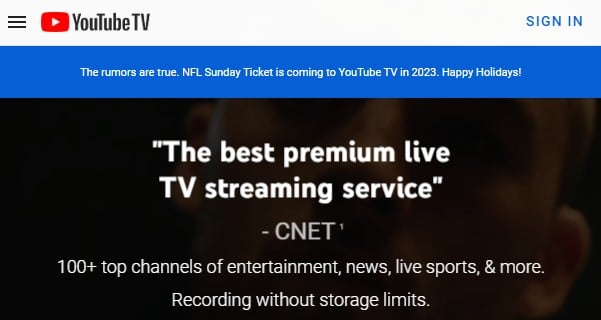
Locating the Sign In option.
Step 2: Access your Profile
Once logged in, look for your profile photo in the same location on the new page. Select it and then choose the gear icon to bring up the settings menu.
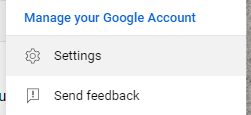
Step 3: Manage YouTube TV Membership
From here, you’ll see membership plans along with other options for your YouTube TV account. Select Manage next to your subscription.
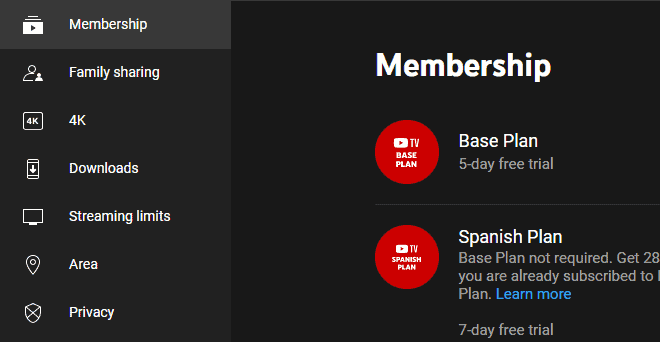
Step 4: Cancel Membership
Now you’re given the option to cancel YouTube TV. Follow the prompts on the screen and confirm any pop-ups until you receive the cancelation message from YouTube.

While YouTube TV has a ton of great offerings and perks to being a subscriber, you may want to cancel for a variety of reasons. With the steps above, cancelling your subscription is quick and easy. However, if you’re still wondering how to unsubscribe or if you prefer a video tutorial, we found a great guide on YouTube.
How to Cancel YouTube TV from Android
Google is responsible for Android and owns YouTube, so it’s no surprise you can cancel the service through the official app.
Step 1: Open the YouTube TV app
On your smartphone or tablet, locate and tap to open the YouTube TV app. If you haven’t already signed in, do so now and make sure you sign in under the account you subscribed with.
Step 2: Settings Menu
Tap on your profile photo to access the settings menu. From here, select Membership under settings to access YouTube TV membership plans.
Step 3: Cancel YouTube TV
Select Manage next to your membership and choose Cancel membership. Follow the prompts until you receive a message saying your subscription has ended.
Pausing a YouTube Subscription
If you don’t want to cancel your YouTube TV subscription, but don’t plan to use it for a bit, you can put it on pause. This allows you to take a break without canceling, and is simpler than pulling the plug on your subscription.
To pause a subscription to YouTube TV, you’ll need to follow a path similar to cancelation. That means you’ll want to go to your profile photo and access the settings menu. From here, choose Membership, select your plan, and then look for the option to pause it.

You can adjust the slider to the amount of time you want to place your subscription on pause but will be able to resume your membership at any time.
The Wrap-Up
YouTube TV is an interesting alternative to live TV offerings from Hulu, Amazon, and similar streaming services. It’s also a subscription service many people are curious about, given the price and the fact the company provides new users with a free trial beforehand. If you’re wondering how YouTube TV compares against a major cable provider, check out our Xfinity Comcast vs. YouTube TV comparison.
Frequently Asked Questions
Does YouTube TV have add-ons?
You can choose from a variety of premium add-on channels through YouTube TV, including HBO Max, EPIX, Starz, and Showtime.
Are there ads on YouTube TV?
Yes, live TV programming has ads like traditional TV, although you can fast forward through any TV you’ve recorded through DVR.
What devices is YouTube TV available on?
You can watch YouTube TV almost anywhere, including mobile phones, web browsers, smart TVs, and video game consoles.
Is YouTube TV only available in the United States?
Yes, and programming may change domestically while you travel. You cannot watch YouTube TV while traveling internationally.
How much is a YouTube TV subscription?
Pricing is subject to change, but the base package is priced at $64.99 a month, while the Spanish package is $24.99.
Which networks are on YouTube TV?
That depends on the plan you choose, but some of the networks include NBC, ABC, CBS, Fox, AMC, BBC, ESPN, FX, TBS, and SyFy.
What happens when you cancel YouTube TV?
You will no longer be billed for the service, but can continue watching it until the end of your membership. The exception are free trials, as you’re viewing ends immediately when you cancel those plans.