
How to Unblock Someone On Xbox in 7 Easy Steps (with Photos)
As every gamer knows, sometimes things can get a bit toxic, and you have to use the block button. But what happens when you want to unblock someone? Fortunately, you can unblock someone on your Xbox, PC, and the Xbox app, and we’ll show you how to do it!
Let’s break down everything you need to know.
How to Find Your Blocked Users on Xbox: Step-by-Step Guide
One of the most difficult parts of unblocking another user on Xbox is figuring out who is blocked. Even if you know which user you want to unblock, you’ll need to remember their Gamertag. If you know that, feel free to skip this section.
For those of you who don’t know their Gamertag or want to unblock many gamers, walk through this section with us first.
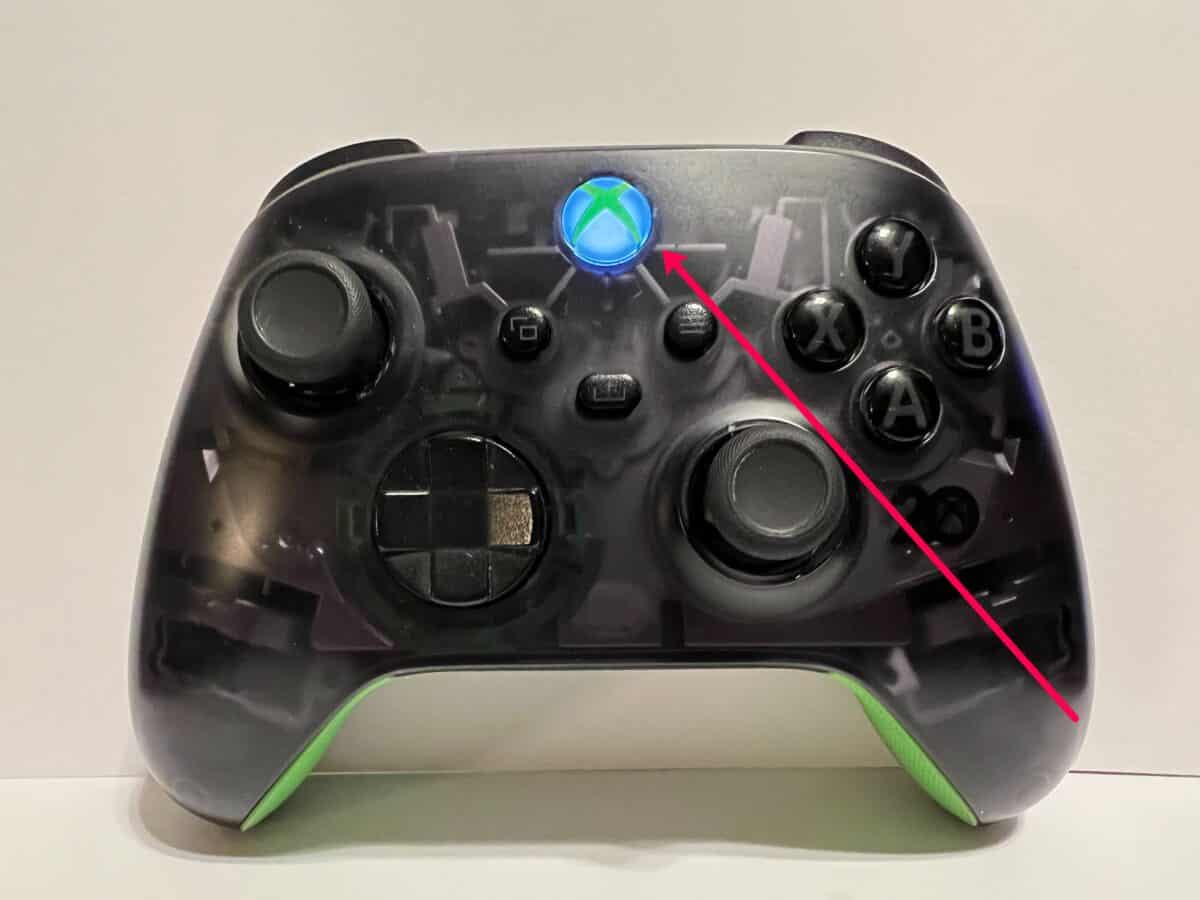
Step 1: Click the Xbox Button
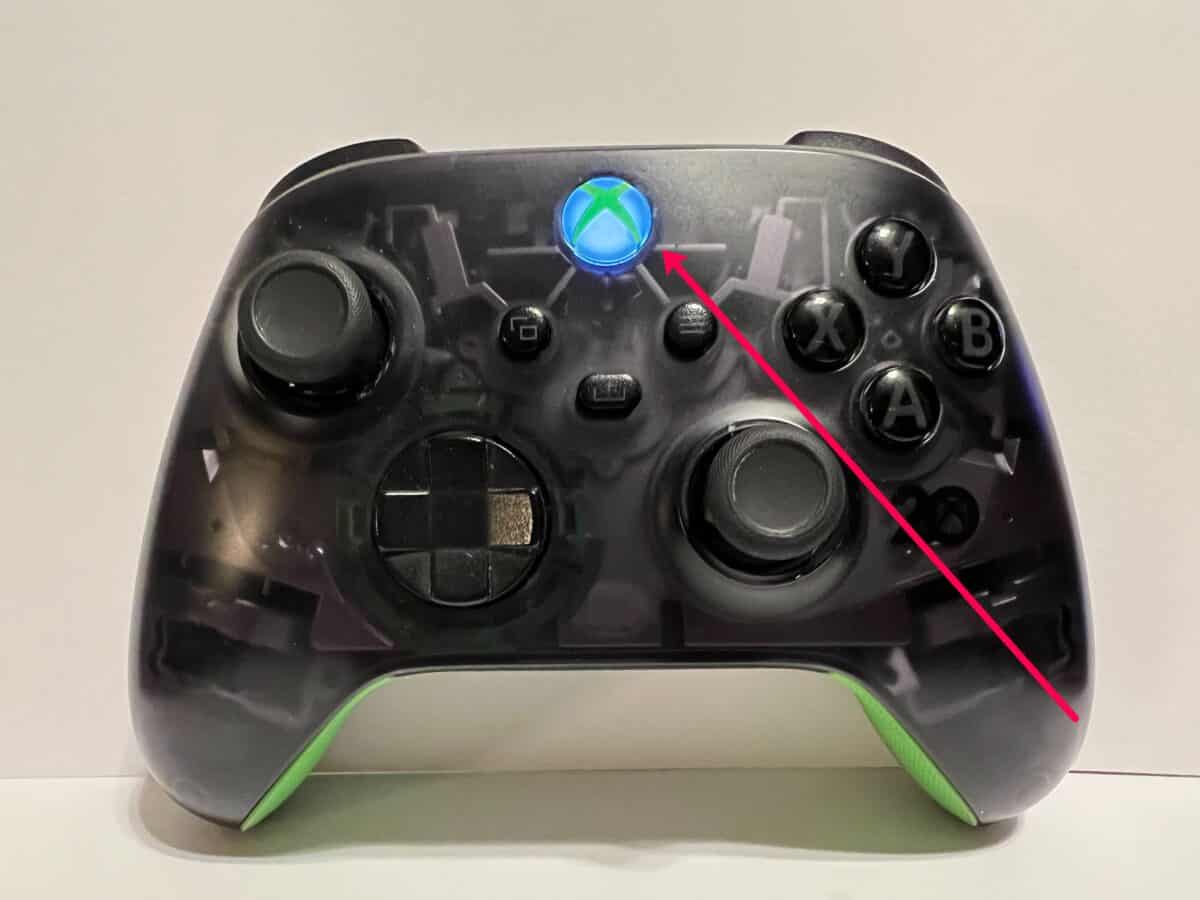
We’ll start out by going to your Xbox profile. If you’re on the Xbox home screen, click the Xbox button on your controller to access the sub-menu.
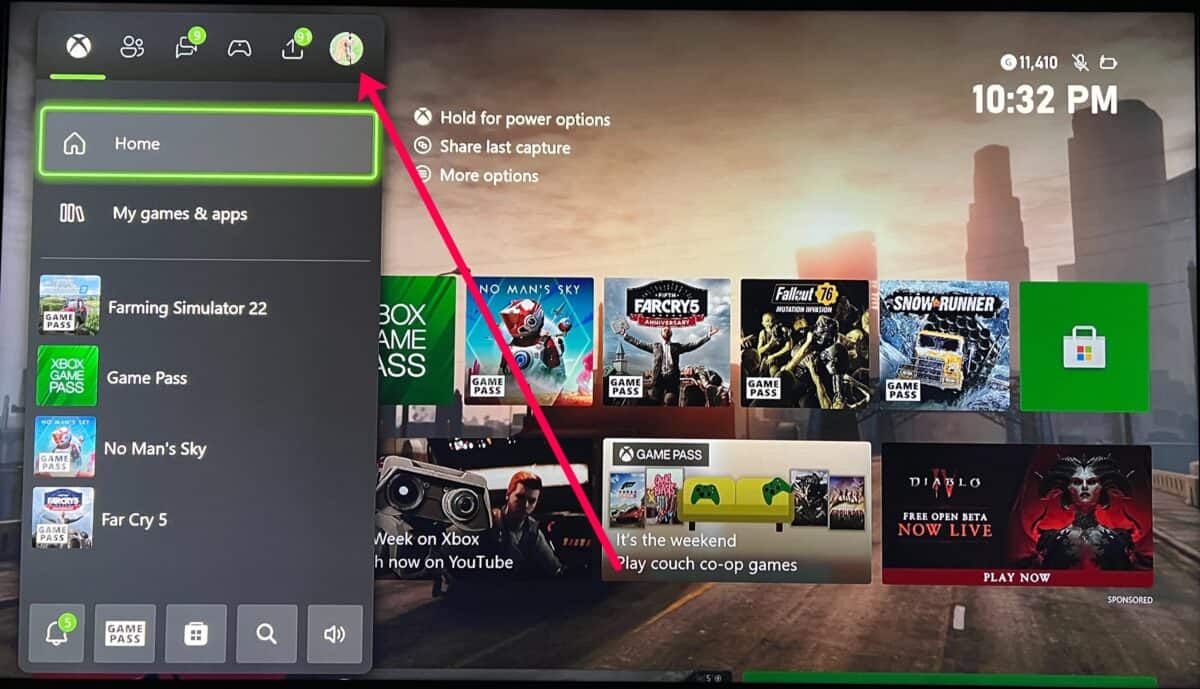
Step 2: Click Your Profile Icon
Now, use the right bumper to highlight your profile icon on the far right of the menu. Click A on your Xbox controller to access your profile.
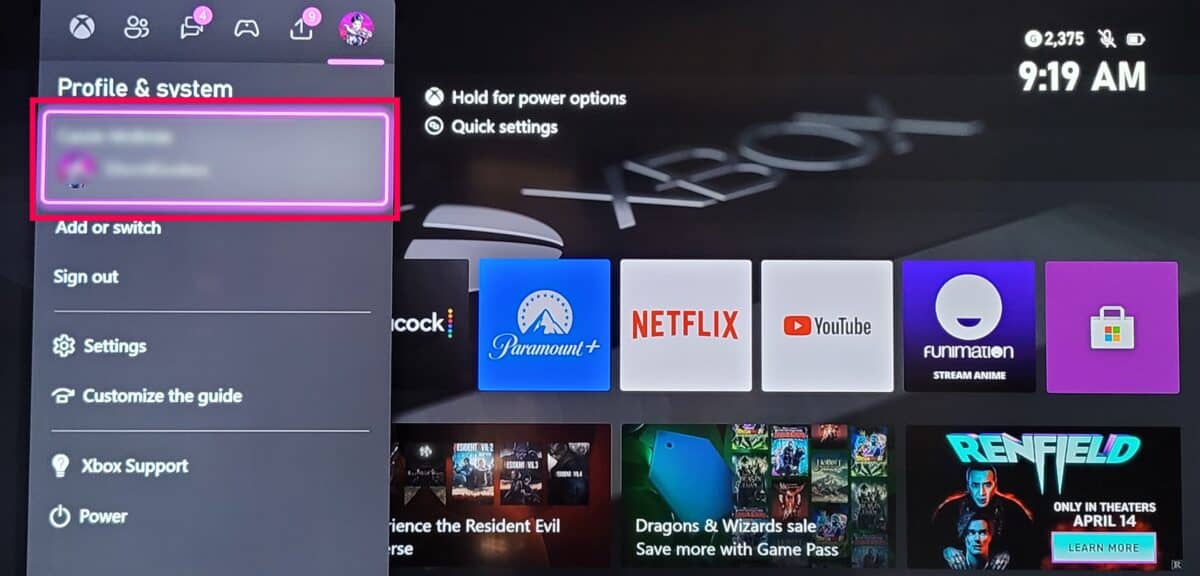
Then, click on your Gamertag at the top.
Step 3: Click My Profile
Click on the My Profile option to open your Xbox profile in full screen.
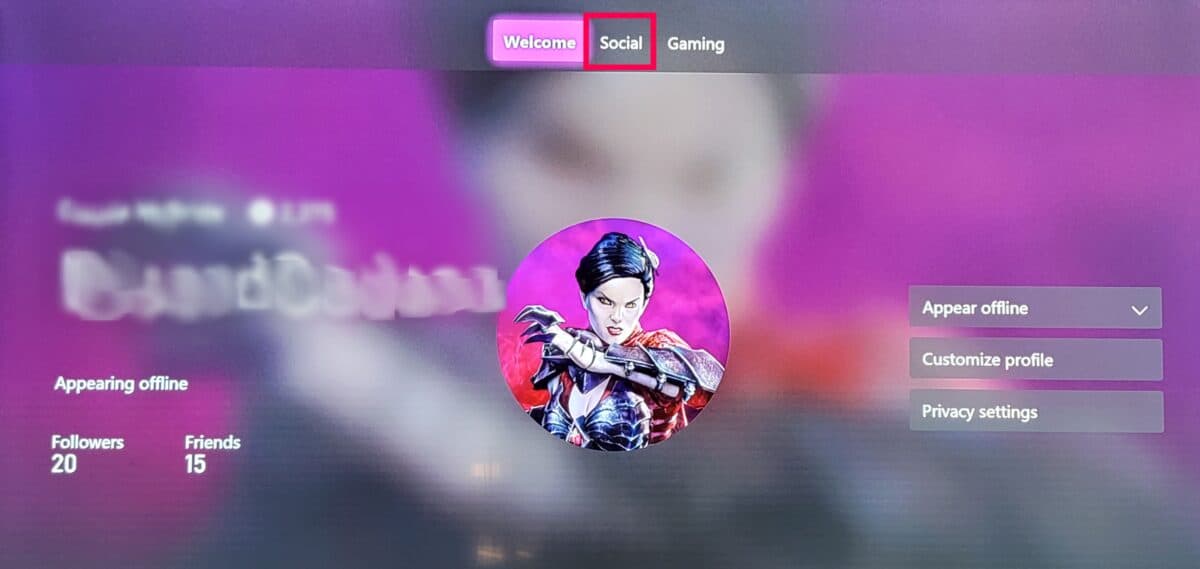
Step 4: Click Social
Use the right bumper on your Xbox controller to access the Social tab. When it’s highlighted, click A on your controller.
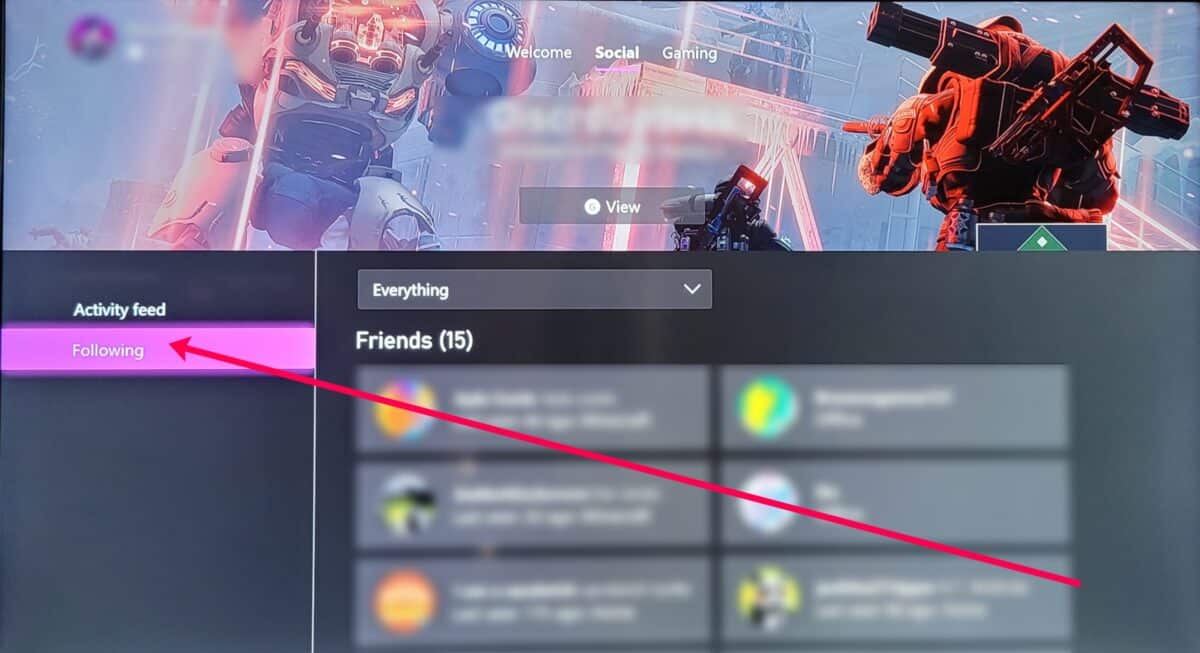
Step 5: Click Following
Use the left toggle switch on your controller and highlight Following in the lower left corner. Click A to access the menu.
Step 6: Click the Everything Dropdown
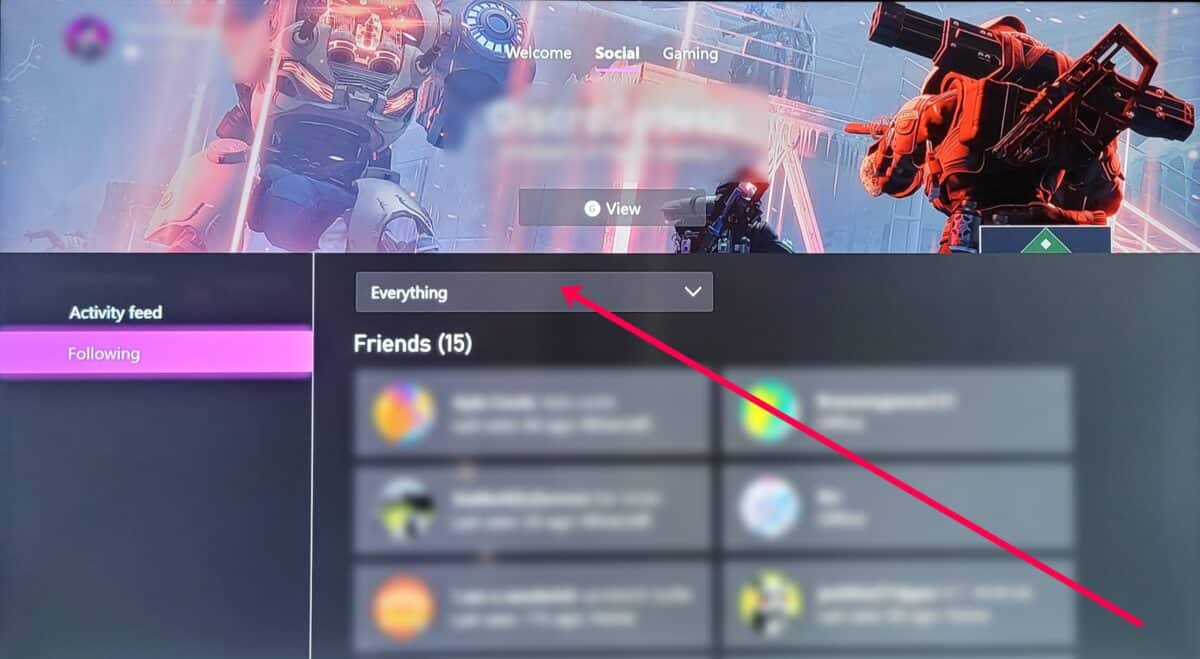
This new page has a small drop-down menu to the right. It says Everything by default. Click it.
Step 7: Click Blocked
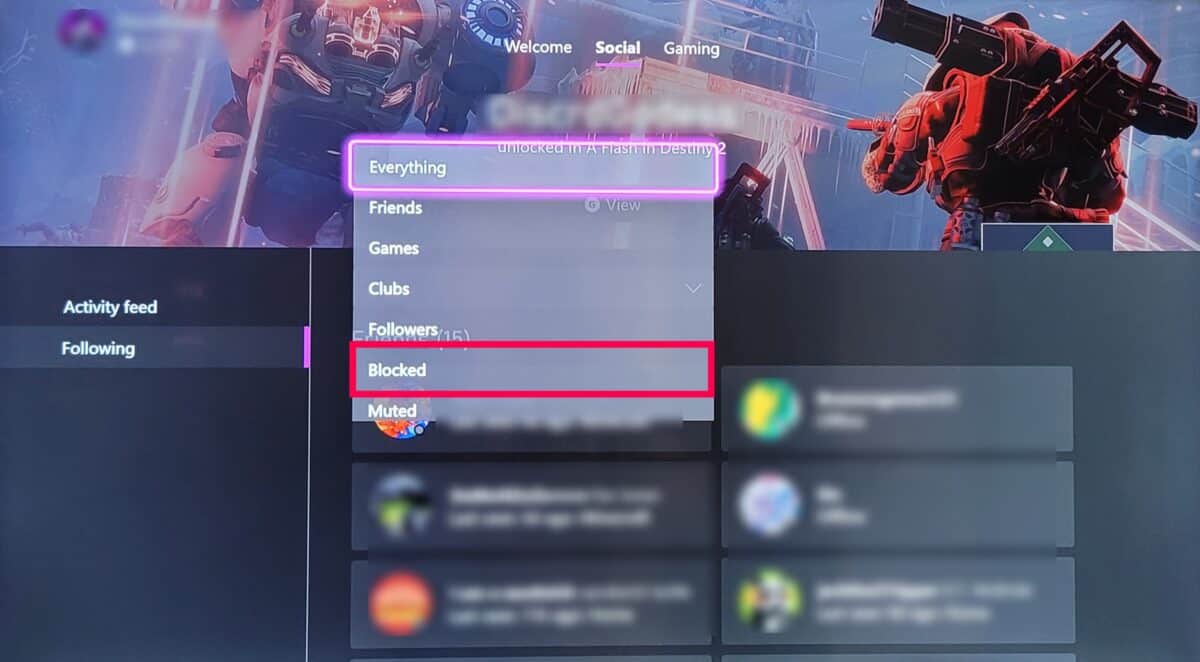
Select Blocked from the drop-down menu. Now, you can see everyone you’ve blocked on your Xbox.
Note: You can unblock players from this tab. Click their gamer profile and click More on the right. Then, click Unblock.
How to Unblock Someone on an Xbox: Step-by-Step Guide
If you already know your friend’s Gamertag, and you’re using your Xbox, follow these steps to unblock someone.
Step 1: Click the Xbox Button on Your Controller
Click the Xbox button on your controller to open the Xbox menu.
Step 2: Right Bumper to the Friends Tab
Use the right bumper button on your controller to highlight the Friends tab. Then, click A to access the menu.
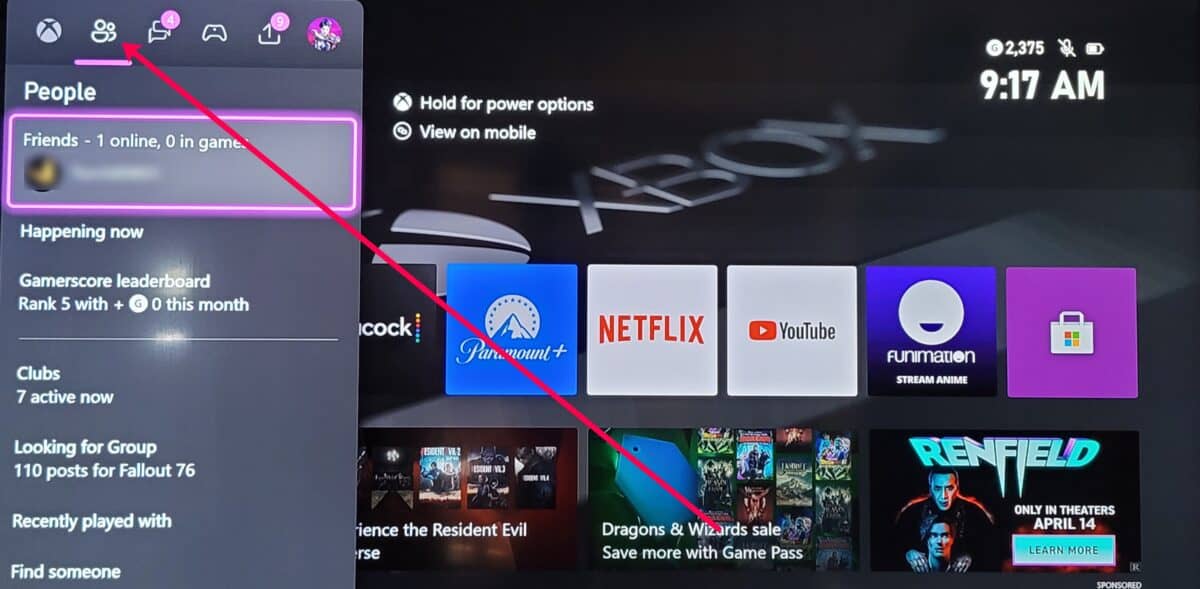
Step 3: Click Find Someone
Click the Find Someone option at the bottom of the menu.
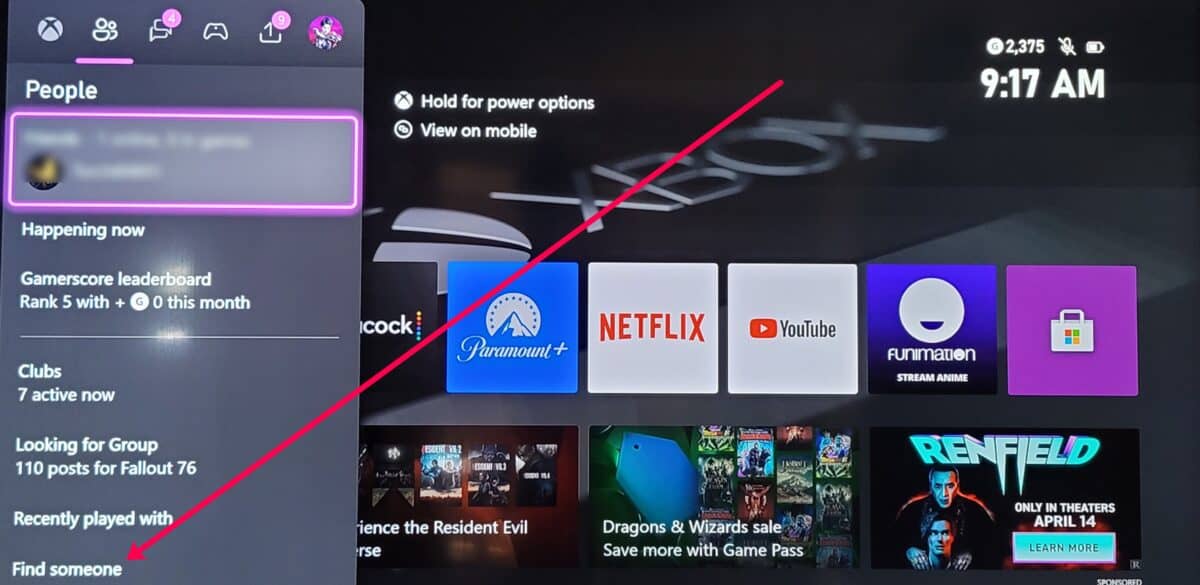
Step 4: Search the User’s Gamertag
Click the search box and type the user’s Gamertag. Then, click the three-line menu button on your controller to close the keyboard.
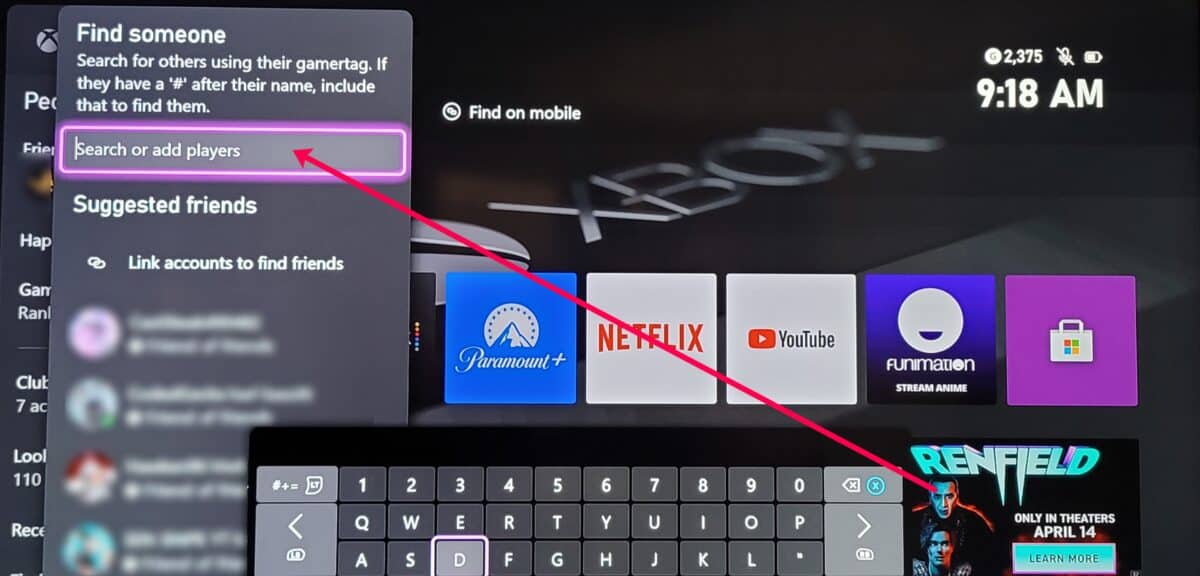
Step 5: Click the User’s Gamertag
Finally, click A on your controller to access your blocked friend’s profile.
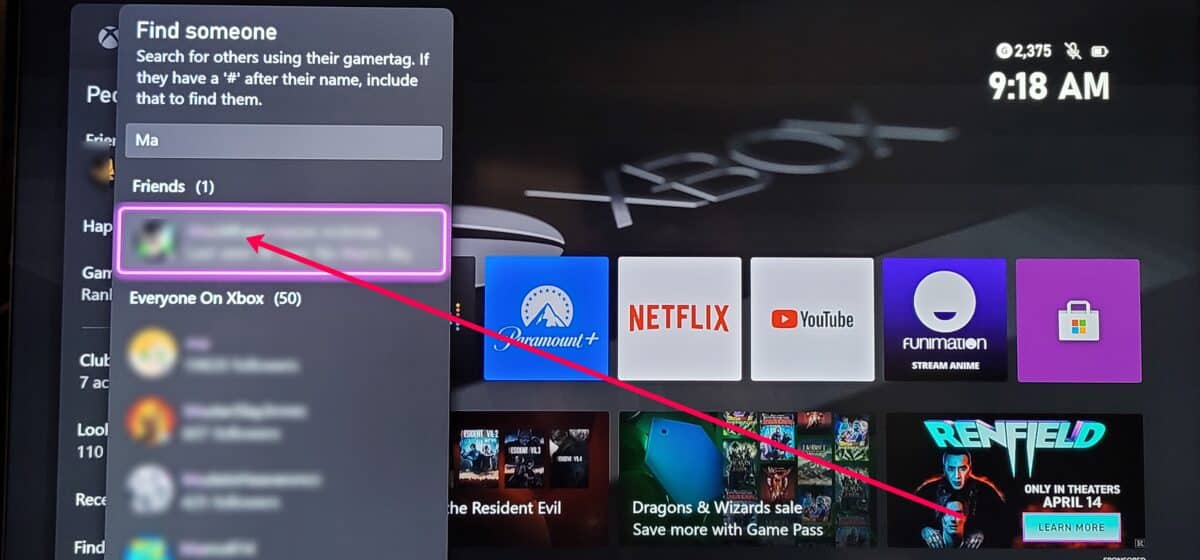
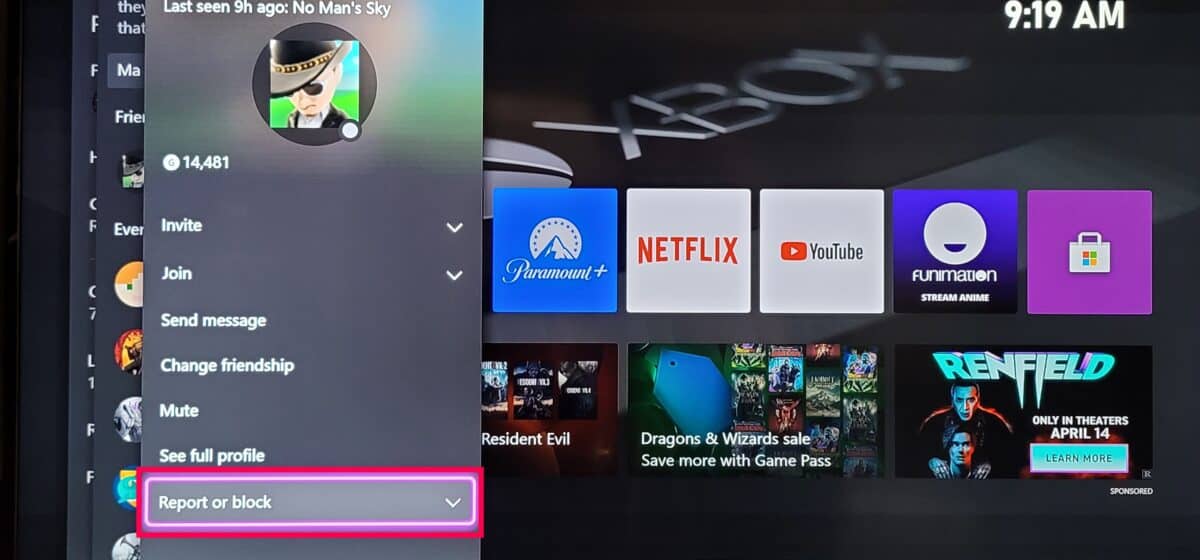
Step 6: Click Report or Block
Select the Report or Block option at the bottom of the page.
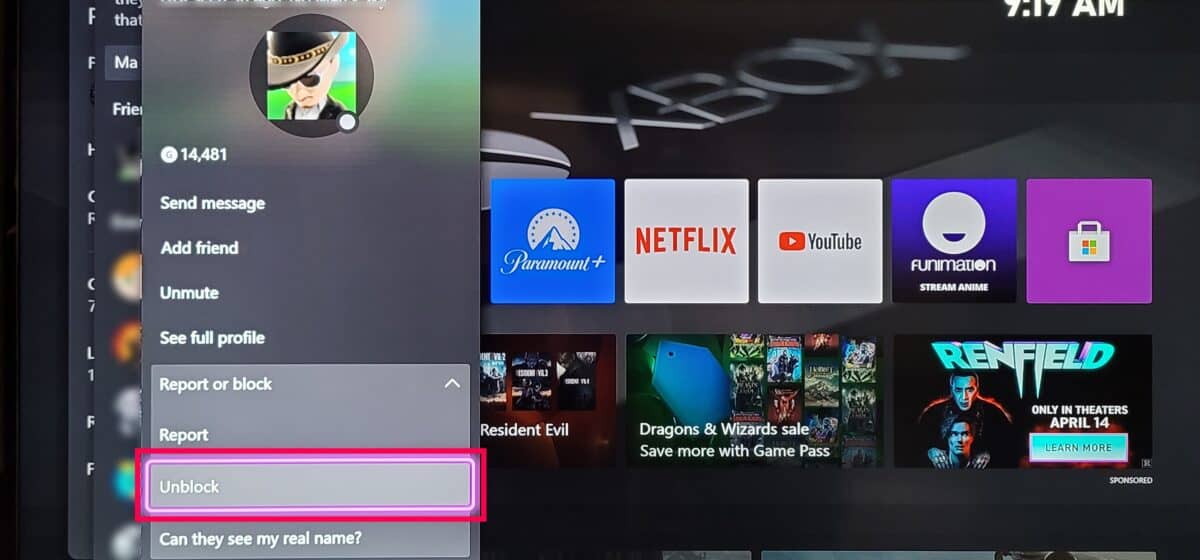
Step 7: Click Unblock
Finally, select Unblock.
Note: Your friendship status does not survive blocking (but hopefully, your actual friendship will). When you unblock someone on Xbox, you’ll need to send a new friend request.
How to Unblock Someone on the Xbox App: Steps to Follow
If you’re a serious gamer, it’s best to use the Xbox app on your mobile device for serious tasks like chatting with and unblocking friends. The Xbox app is simply easier to use than your Xbox controller.
So, if you have the app, follow these steps to unblock someone on Xbox.
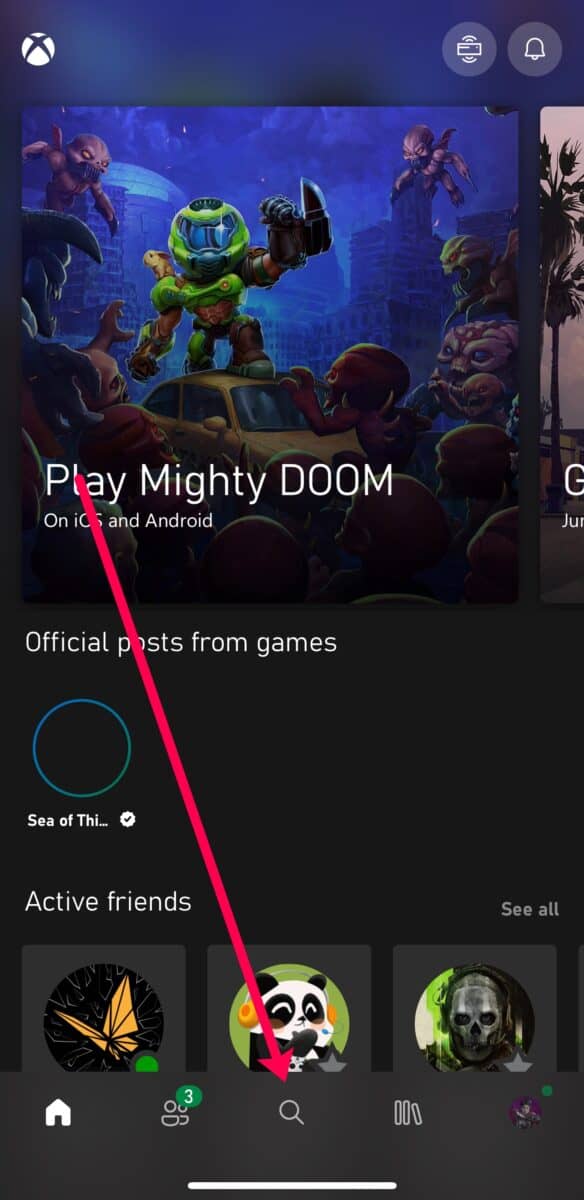
Step 1: Tap the Search Button
Launch the Xbox app on your mobile device and tap the Search button at the bottom of the screen.
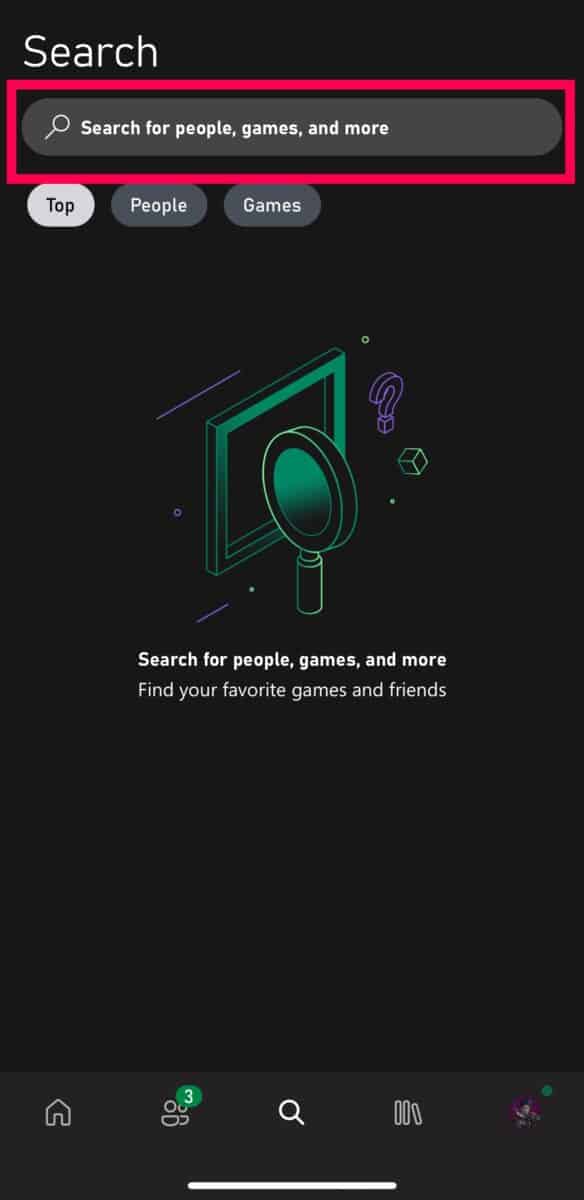
Step 2: Search for the Blocked User
Input the user’s Gamertag.
Helpful hint: If you don’t know your friend’s Gamertag, use the steps above to find it on your Xbox.
Step 3: Tap the Menu Icon
You should see your friend’s profile now. Tap the three-dot menu icon next to their name.
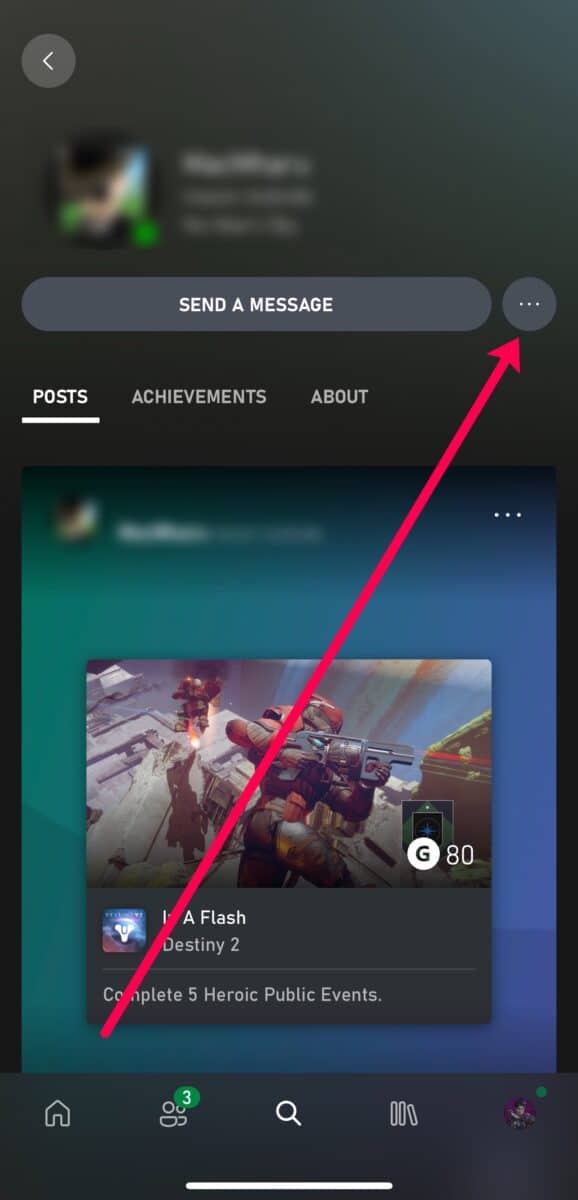
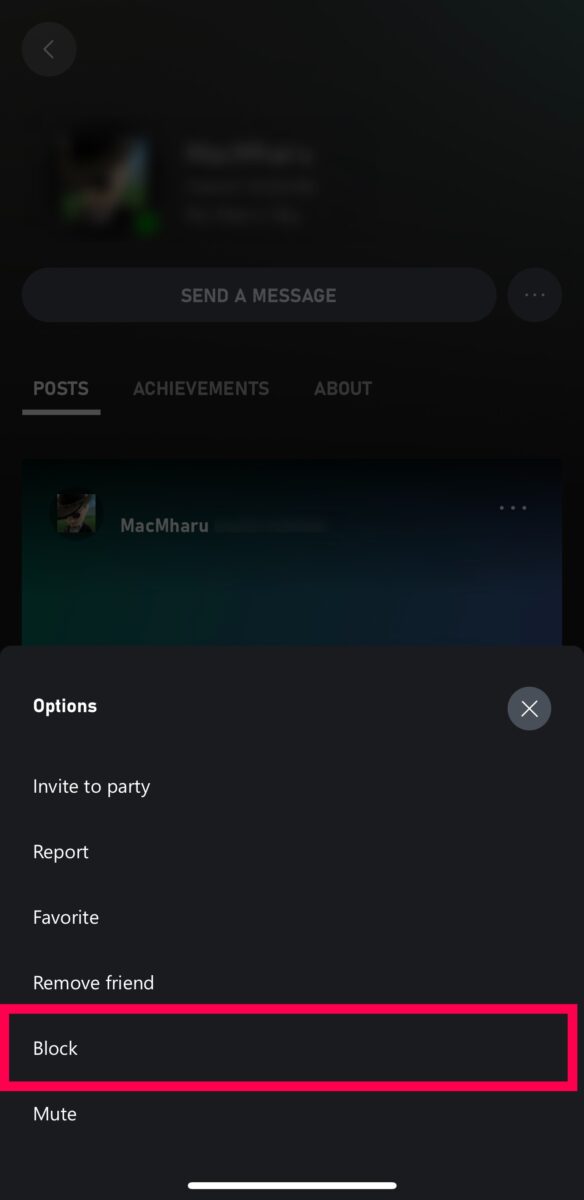
Step 4: Tap Unblock
Finally, tap Unblock.
As mentioned previously, you’ll have to send them a new friend request. But at least you can play together again.
How to Unblock Someone on the Xbox PC App: Step-by-Step
Xbox and Microsoft go together like peas and carrots. If you prefer the easiest way to unblock someone and have a PC handy, launch the Xbox app and follow these steps to unblock someone.
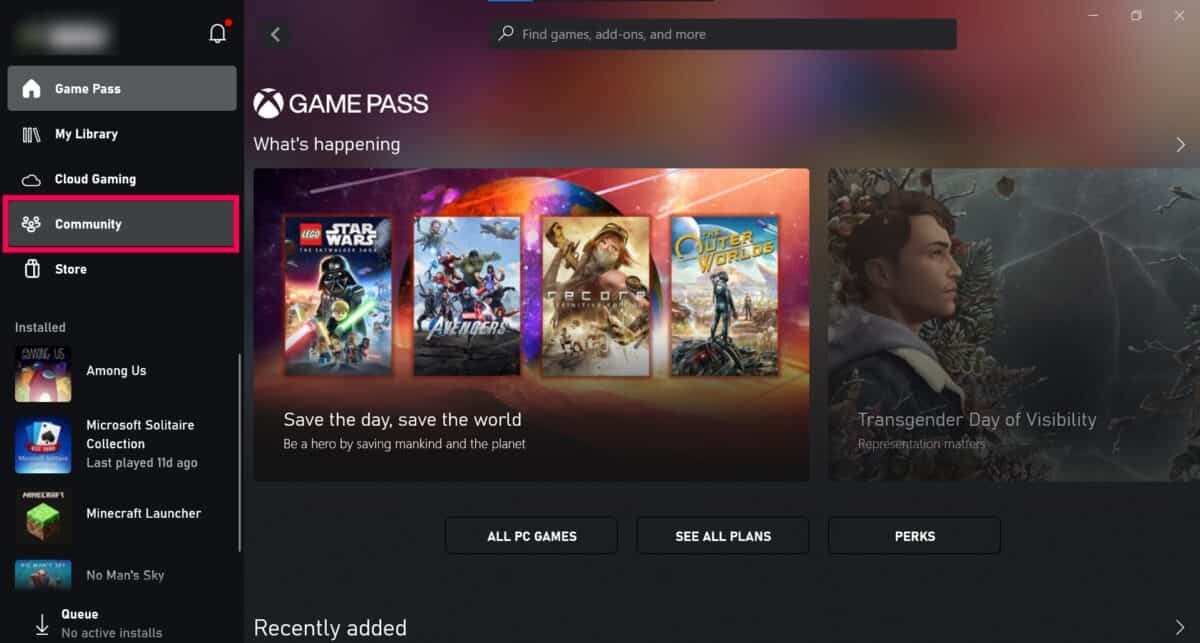
Step 1: Click Community
Click the Community tab on the left side.
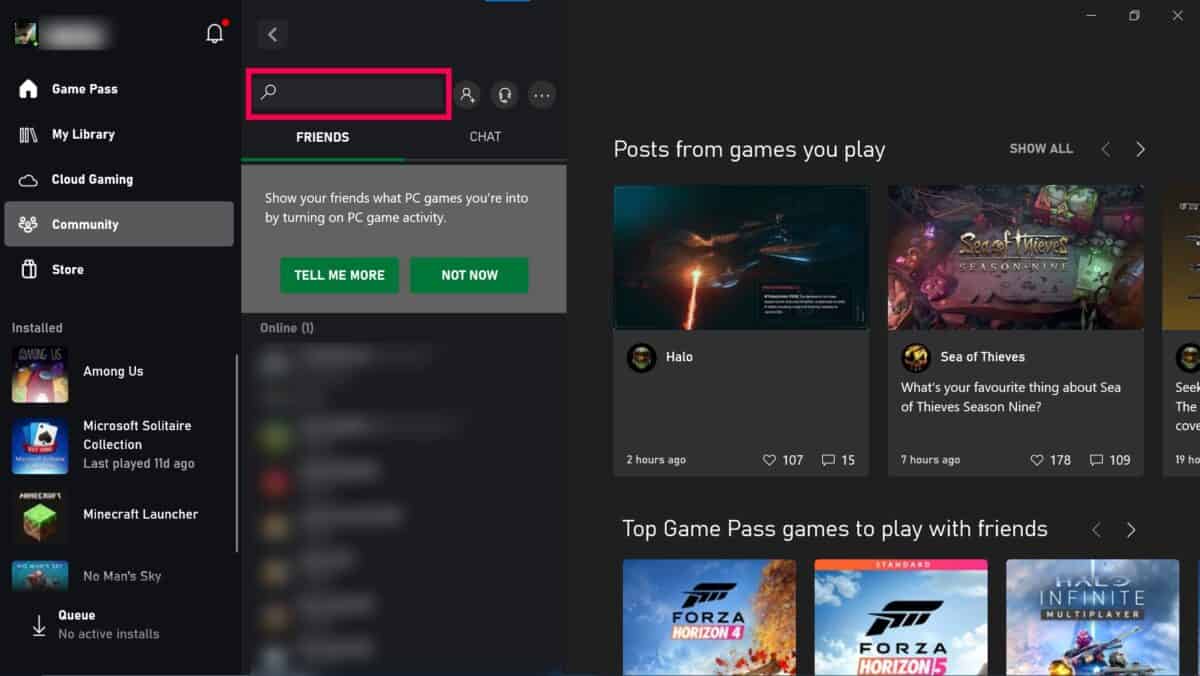
Step 2: Type the Gamertag
You can input your friend’s Gamertag in the search bar at the top. Then, hit Enter on your keyboard.
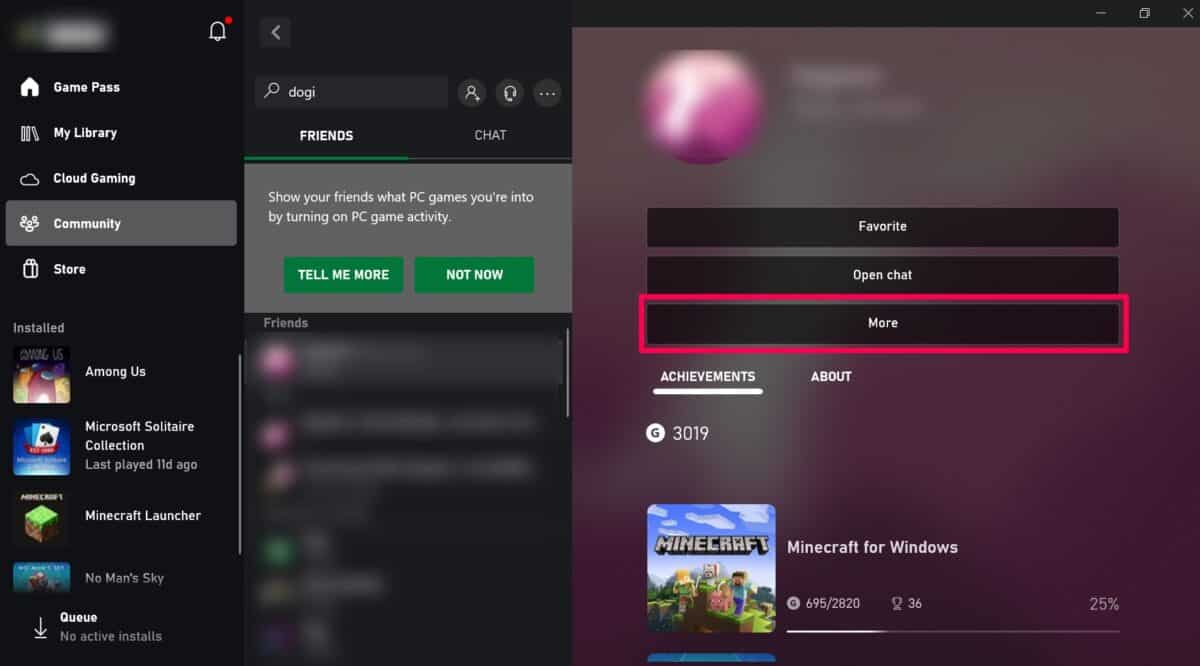
Step 3: Click More
Click on your friend’s profile. Now, you’ll see all of their profile information. Click the More option in the middle of the screen.
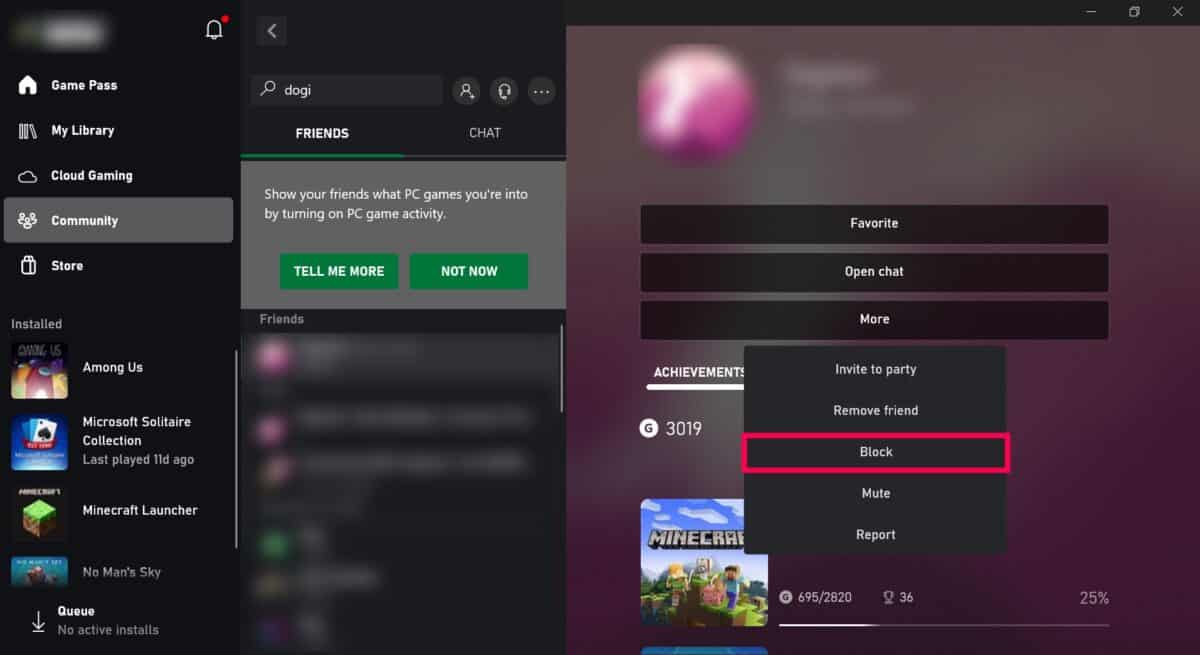
Step 4: Click Unblock
A drop-down menu appears with the Unblock option. Click it.
What Happens When You Unblock Someone on Xbox?
Now, before you go unblocking everyone, let’s talk a bit about what happens when you unblock someone.
Communication
When you block another gamer on your Xbox, they can’t chat with you anymore. They can’t send you messages or join your party chats. However, when you unblock them, they can.
Games Stats & Progress
Not only does Xbox publish your Online status, but it also lets everyone see what you’re playing and your game progress. Blocked users can’t see any of this information. But, of course, when you unblock them, they can see all of that information.
Notifications
Finally, you won’t receive any notifications from blocked users. It essentially becomes as though that player no longer exists in your world. When you unblock the gamer, and the two of you become Xbox friends again, you’ll start receiving notifications from them again.
Let’s Game!!!
Now that you’ve taken our crash course on Xbox unblocking, we hope you’re enjoying good times with your friends, battling epic adversaries in COD, or running CEO heists on GTA. At the end of the day, Xbox gaming is better with friends.
But if you run into a few griefers, feel free to hit that Block button again. You don’t want anyone ruining your fun, after all.
Frequently Asked Questions
Can I block and unblock people whenever I want?
For the most part, yes. But you can’t block official Xbox accounts.
Can I mass unblock people on Xbox?
Unfortunately, no. The fastest and easiest way to unblock several Xbox profiles at one time is by following the steps above to locate your Blocked list (on your Xbox) or using the PC app (if you know the users’ Gamertags).
Will people know I unblocked them?
While Xbox doesn’t send your friends (or foes) alerts that you blocked or unblocked them, it’s pretty easy to tell. If they visit your profile, they’ll see your online status and profile information. This is a pretty good indicator that you unblocked them.
Is it possible to run into people I've blocked on Xbox?
Yes! Believe it or not, you might actually run into your blocked foes in MMO (mass multiplayer online) games. Unfortunately, many game companies don’t have access to your Xbox blocked list. So, it is possible to run into them. Of course, they can’t message you or invite you to chats, but it’s still pretty awkward when you get matched with an enemy.
How do I report someone on Xbox?
If another gamer’s conduct is bad enough, you can report them to the Xbox overseers. Follow the steps above to unblock someone, but hit the Report option instead. Then, fill out the forms.