How to Make All Your Accounts Safer With Two-Factor Authentication (2FA)
In our increasingly digital world, online security is more important than ever. With data breaches making regular headlines and the average person having over 100 online accounts, protecting your personal information is critical. One of the most effective ways to secure your accounts is by enabling two-factor authentication (2FA).
What is Two-Factor Authentication?
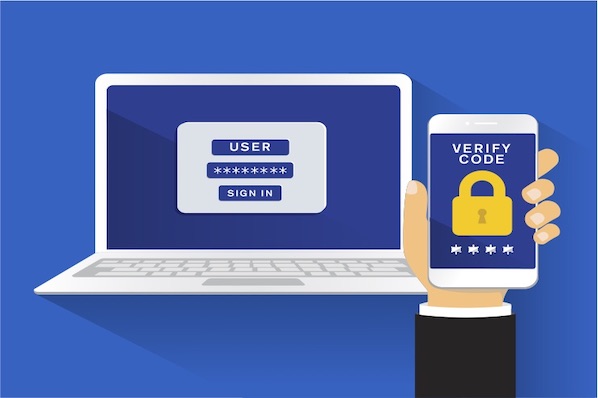
Two-factor authentication is a security process that requires two different forms of identification to access an account. It goes beyond just entering a username and password by requiring an additional verification step, usually through entering a code sent to your phone or tapping a prompt on a mobile app.
Here‘s how it works: when you enable 2FA on an account, you‘ll be asked to provide a second form of authentication after entering your password. This second factor could be:
- A one-time code generated by an authenticator app or sent to you via SMS
- A physical security key that you insert into your device
- A biometric factor like your fingerprint or face
By requiring multiple methods of verification, 2FA makes it significantly harder for cybercriminals to hack into your accounts, even if they obtain your password. According to Microsoft, enabling 2FA blocks 99.9% of automated attacks.

Why You Need 2FA
Data breaches have become an unfortunate reality, with the number of U.S. data breaches tracking a record high in 2021. When a breach exposes user account credentials, hackers will often try using those leaked username/password combinations on other websites, a technique known as credential stuffing. If you use the same login details across multiple accounts, one breach could give criminals the keys to your entire online life.
Weak or reused passwords are a major vulnerability, but even strong, unique passwords can still be compromised through techniques like phishing, malware, and brute force hacking attempts. That‘s where 2FA comes in. By requiring that second form of verification, 2FA ensures your account stays secure even if your password is somehow stolen.
As Gartner analyst Ant Allan explains: "Use of anything beyond single-factor authentication, such as 2FA, is a bare minimum for appropriate access protection." (Gartner)
How to Enable 2FA On Your Accounts
So how do you actually go about turning on two-factor authentication? The process varies somewhat between services, but generally involves going into your account security settings and selecting an option to enable 2FA or "two-step verification."
You‘ll be guided through choosing and setting up your preferred second factor authentication method, whether an authenticator app, text messages, backup codes, or a security key. You may need to enter a phone number or scan a QR code to sync your account with your 2FA method.
Here are step-by-step guides for enabling 2FA on some popular accounts:
Gmail
- Open your Google Account settings and click "Security" in the left-hand menu
- Under "Signing in to Google," select "2-Step Verification"
- Click "Get Started" and enter your password
- Choose your second verification step from the options listed and follow the set up prompts
- Once 2FA is enabled, you‘ll see backup options to add under the 2FA section

Microsoft
- Sign in to your Microsoft account and go to the "Security" tab
- Under "Advanced security options" choose "Two-step verification"
- Click "Turn on two-step verification"
- Decide if you want to use the Microsoft Authenticator app or receive a code via email or text
- Download the app or enter your email/phone number and follow the prompts to finish 2FA setup
Apple ID
- Sign in to your Apple ID account page
- Under the "Security" section, click "Edit"
- If you already have a trusted device set up, you can turn on 2FA directly. If not, you‘ll be guided to set one up.
- Tap "Turn On Two-Factor Authentication" and follow the prompts
- You can also access 2FA settings on your iPhone under "Settings" > [your name] > "Password & Security"
- Click the dropdown arrow in the Facebook menu and select "Settings & Privacy" > "Settings"
- Go to "Security and Login" and scroll to the "Two-Factor Authentication" section
- Click "Edit" next to "Use two-factor authentication"
- Choose your preferred 2FA method from the options given and click "Continue"
- Enter the phone number to receive codes at or sync your account to an authenticator app by scanning the QR code
- Enter the code sent to your phone or app to confirm setup
Setting up 2FA does add an extra step to logging in, but it‘s well worth the substantially increased security. And in most cases, you can check a box to "trust" recognized devices so you don‘t have to enter a code every single login.
Best Practices for Two-Factor Authentication
To make the most of 2FA security, follow these tips:
-
Enable 2FA on every account that offers it. Don‘t just stop at your most sensitive accounts – use 2FA everywhere available to minimize your risk.
-
Use an authenticator app or security key for your second factor when possible. These are more secure than SMS codes, which can be intercepted.
-
Set up two backup 2FA methods. If you lose access to your primary method, you don‘t want to be locked out of your account. Most services allow you to set up multiple 2FA options.
-
Never share your one-time 2FA codes. Treat these just like passwords. Customer support will never ask you for your 2FA code.
-
Save your account recovery codes in a secure place. These allow you to regain account access if you lose your 2FA device. Store them somewhere encrypted and private.
-
Keep the software on your authenticator device updated. Regularly update your smartphone or tablet operating system to patch any security vulnerabilities.
Common 2FA Questions and Concerns
Despite the security benefits, some people hesitate to use 2FA. Let‘s look at some frequently asked questions:
What if I lose my phone?
As long as you‘ve saved your backup codes and set up an alternate 2FA method, you‘ll still be able to access your accounts. You can log in using a backup code while you get your primary 2FA method restored on a new phone.
Isn‘t SMS 2FA unsafe?
Any form of 2FA is still far better than not using it at all. SMS does have some vulnerabilities, so it‘s good to use stronger methods when available. But if SMS is your only 2FA option, it‘s better than nothing.
I‘m worried about getting locked out of my accounts.
This is why it‘s so important to save your backup codes and set up alternate 2FA methods. Many services allow you to designate a backup phone number or generate one-time "recovery codes" for emergency account access that you should store securely. As long as you have your backup codes, you‘ll never lose account access.
2FA is inconvenient and adds too much friction.
Most 2FA methods only add a few seconds to your login process. Considering the security benefits, it‘s well worth the minor inconvenience. And once a device is trusted, you usually won‘t need to re-enter a code on every login.
Additional Security Measures Beyond 2FA
While enabling two-factor authentication is one of the most important steps you can take to secure your online accounts, it‘s not the only one. 2FA works best when combined with other security best practices:
-
Use strong, unique passwords. The longer and more complex, the better. Consider using a password manager to generate and securely store strong passwords.
-
Check for and remove any unknown devices on your accounts. Most accounts have a "Devices" or "Sessions" section where you can view and log out any devices you don‘t recognize.
-
Be cautious about what personal information you share online. Revealing too much can help hackers guess security questions or craft personalized phishing attempts.
-
Keep software and operating systems up-to-date. Enable automatic updates to ensure you always have the latest security patches and features.
-
Learn to spot phishing attempts. Be wary of unsolicited messages asking you to click links or provide login details. When in doubt, go directly to a site through your browser rather than clicking an emailed link.
The Bottom Line
No one is immune to cybercrime. Even if you think "it won‘t happen to me," taking a few simple steps to protect your accounts can save you major headaches down the line. Enabling 2FA is one of the quickest, easiest, and most effective ways to stay safer online.
By requiring a second form of verification beyond your password, 2FA stops hackers in their tracks – even if they have your login credentials. And with most major websites and apps now offering simple 2FA setup, there‘s no reason not to add this extra layer of protection to your accounts.
Don‘t wait until it‘s too late. Take a few minutes to enable 2FA everywhere you can, and enjoy the peace of mind that comes with knowing your accounts are significantly more secure. In our digital world, a little prevention goes a long way.