Advanced Custom Fields in WordPress: The Ultimate Beginner‘s Guide (2024)
WordPress is renowned for its flexibility as a content management system, powering over 40% of all websites. One of the key features that gives WordPress its flexibility is custom fields. Custom fields allow you to store additional data for your posts, pages, users, terms, and more. This extra data can then be used throughout your site to create more advanced content, layouts and functionality.
While WordPress does include a built-in custom fields interface, it‘s quite limited in both functionality and usability, especially for non-technical users. This is where the Advanced Custom Fields (ACF) plugin steps in. ACF provides a modern, intuitive interface for creating custom fields and makes it incredibly easy to integrate those fields throughout your WordPress site.
In this ultimate beginner‘s guide, we‘ll cover everything you need to know to start leveraging the power of Advanced Custom Fields on your WordPress site. Whether you‘re a developer, designer, marketer or content creator, this guide will help you understand and start using ACF today.
What are WordPress Custom Fields?
At their core, WordPress custom fields allow you to store additional data for your content. Each piece of content in WordPress (posts, pages, etc.) comes with a standard set of fields like the title, content editor, excerpt, featured image, and discussion settings. But in many cases, you‘ll want to store additional information beyond these standard fields.
For example, let‘s say you‘re creating a real estate website with WordPress. For each real estate listing, you‘ll likely want to add fields for the price, number of bedrooms, square footage, location, and more. These extra data points go beyond the standard WordPress fields. That‘s where custom fields come in.
By adding custom fields to your real estate listings, you can store each of those unique data points and use them throughout your site, such as displaying them on the single listing page or letting visitors search by number of bedrooms.
Another example would be a food blog that wants to add custom fields for ingredients, cook time, difficulty, etc. to its recipe posts. Or a movie review site that wants to store fields for the director, release date, rating, trailer embed, and more.
The applications for custom fields are nearly endless—whenever you need to store extra data for your content, custom fields are the answer.
How Many Sites Use Custom Fields?
To illustrate just how common custom fields are, check out these statistics:
- Over 1 million WordPress sites use custom fields in some form
- 2 of the top 10 most popular WordPress plugins are for managing custom fields
- ACF is actively installed on over 2 million WordPress sites
- 30% of all WordPress sites use the built-in custom fields meta box
Needless to say, custom fields play a critical role for a huge number of WordPress sites. And their usage will only continue to grow.
The Problem With Native WordPress Custom Fields
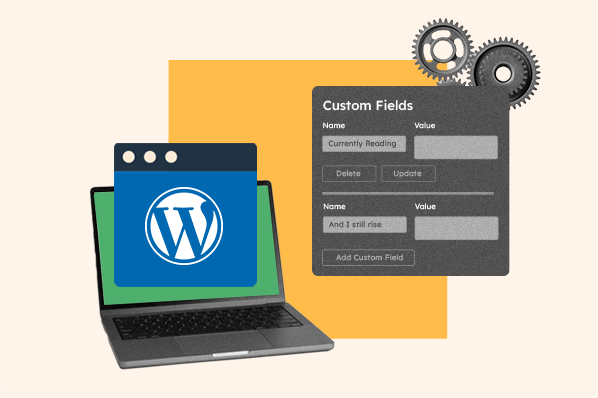
As mentioned earlier, WordPress does include a built-in custom fields interface in the post and page editing screens. You access it by clicking the "Custom Fields" meta box. From there, you can add new custom fields using a simple key/value interface.
While this native functionality works at a basic level, there are some major drawbacks:
- The interface is clunky and not user-friendly, especially for non-technical users
- There are no field types beyond a basic text input—you can‘t add file uploads, WYSIWYG editors, datepickers, etc.
- You can only add custom fields to posts and pages, not other content types like users or terms
- There‘s no way to add validation, placeholder text, default values, etc. to your fields
- Displaying the custom field data on the front-end requires you to write PHP code in your theme template files
As you can imagine, this native interface is far from ideal for most users looking to take full advantage of custom fields.
Advanced Custom Fields to the Rescue
ACF is a completely free and open-source plugin developed by Elliot Condon that aims to solve all the problems with the native WordPress custom fields.
With ACF, you get an intuitive admin interface for creating and managing your custom fields. You can create individual fields or groups of fields, and you have over 30 field types to choose from including WYSIWYG editors, file uploads, image galleries, repeaters, flexible content layouts, and more.
ACF fields can also be added to far more than just posts and pages. You can add them to users, terms, comments, widgets, options pages, navigation menus, and more. This opens up a huge number of possibilities for storing structured data throughout WordPress.
On the front-end, ACF provides a number of helpful functions for easily retrieving your custom field data to display in your theme templates. No more complex meta queries or figuring out the right way to check for a field‘s existence before outputting it. ACF handles the heavy lifting for you.
In addition, developers have the ability to register their fields via PHP, allowing for complete customization and integration with themes and plugins. Many popular themes now bundle and register custom ACF fields for various parts of the theme.
Who Should Use Advanced Custom Fields?
ACF is incredibly versatile and can be useful for virtually any WordPress user:
- Developers and designers can use ACF to create modular, flexible layouts by combining various field types
- Marketers can use ACF to add lead generation fields to capture user data
- Content creators can use ACF to add additional metadata and information to their blog posts
- E-commerce sites can use ACF to add product data fields like pricing, sizing, colors, etc.
- Business websites can use ACF to easily edit common data like business hours, phone number, address, etc.
- [And on and on…]
To put it simply: if you need to store and display extra data on your WordPress site, ACF can help.
ACF vs Other Custom Field Plugins
While ACF is arguably the most popular WordPress custom field plugin, there are a few other options worth considering:
- Pods – An open-source plugin that provides an extensive suite of tools for creating and managing custom content types and fields.
- Toolset – A premium suite of plugins for creating custom post types, fields, templates, and more.
- Meta Box – A free plugin with a simple drag-and-drop interface for creating custom meta boxes and fields.
In our experience, ACF strikes the best balance of flexibility, ease of use, and performance. It can handle everything from simple sites with a few custom fields to massive multi-language enterprise sites with thousands of fields.
But don‘t just take our word for it. Here are some stats on ACF‘s popularity compared to other plugins:
| Plugin | WordPress.org Active Installs |
|---|---|
| Advanced Custom Fields | 2+ Million |
| Pods | 80,000+ |
| Toolset Types | 100,000+ |
| Meta Box | 400,000+ |
The numbers speak for themselves—ACF is in a league of its own in terms of popularity and usage.
Key Features of Advanced Custom Fields
Let‘s take a closer look at some of ACF‘s key features to better understand how it works and what it‘s capable of.
Field Types
One of the biggest advantages of ACF is the sheer number of field types it supports. At the time of this writing, ACF includes 30 built-in field types:
- Text
- Textarea
- Number
- Range
- URL
- Password
- WYSIWYG Editor
- oEmbed
- Image
- File
- Gallery
- Select
- Checkbox
- Radio Button
- Button Group
- True / False
- Link
- Post Object
- Page Link
- Relationship
- Taxonomy
- User
- Google Map
- Date Picker
- Time Picker
- Color Picker
- Message
- Accordion
- Tab
- Group
- Repeater
- Flexible Content
- Clone
Having this many field types at your disposal allows you to customize your edit screens and store your data exactly as you need it.
Location Rules
Another powerful feature of ACF is the ability to set location rules for where your fields are displayed. For example, you could create a set of fields that only display on posts in a certain category, or pages with a specific template.
The location rules are built on a conditional logic system, allowing you to mix and match rules however you‘d like. You can combine multiple rules with AND/OR operators.
Some of the location options include:
- Post type
- Post category, tag, or format
- Page template
- Page parent or type
- User role or form
- Taxonomy term
- Attachment
- Comment
- Widget
- Nav menu item
- Options page
This allows you to get very specific with where your fields are displayed, and tailor the edit screens to the specific needs of your site.
PHP API
For developers, one of the most useful aspects of ACF is its extensive PHP API. With just a few lines of code, you can register and configure your own field groups complete with all the settings and location rules.
This is incredibly powerful for integrating ACF fields in themes or plugins, and allows for complete customization of the edit screens and data structure. Many popular WordPress plugins like WooCommerce include built-in ACF fields for various settings and options.
The PHP API also allows for creating your own custom field types. If you have a need for a field that isn‘t included in ACF, you can build it yourself and seamlessly integrate it with the rest of the plugin.
Gutenberg Support
With the introduction of the WordPress Gutenberg block editor in version 5.0, ACF has evolved to support custom block creation. The ACF Blocks feature allows you to register custom blocks with fields powered by ACF.
This makes it easier than ever to create custom layouts and designs in Gutenberg. You can create blocks for things like testimonials, calls to action, pricing tables, and more, and easily include them in your posts and pages.
Getting Started With ACF
Ready to start using ACF in your WordPress projects? Here‘s a quick step-by-step guide on getting up and running with the plugin.
Installation
To install ACF, simply log in to your WordPress admin dashboard and navigate to Plugins > Add New. Search for "Advanced Custom Fields" and look for the plugin authored by Elliot Condon. Click the "Install Now" button, then "Activate".
Once activated, you‘ll see a new "Custom Fields" menu item in your WordPress admin sidebar. This is where you‘ll configure and manage your custom fields.
Creating a Field Group
The first step in using ACF is creating a Field Group. A Field Group is essentially a set of custom fields that are grouped together for a specific purpose. To create a new Field Group:
- Go to Custom Fields > Add New in your WordPress dashboard
- Enter a title for your Field Group
- Configure your fields by clicking the "+ Add Field" button
- Choose your field type, label, name, and settings
- Use the Location rules to define where the Field Group will be displayed
- Publish the Field Group
That‘s it! Your custom fields will now appear on the edit screens for the content types you specified in the Field Group location rules.
Displaying Custom Fields
To display your custom field data in your theme templates, you‘ll use ACF‘s get_field() function. This function takes the name of your field as an argument and returns the field‘s value.
For example, let‘s say you added a "Testimonial" field group with a "testimonial_text" field to your pages. To display that testimonial on your page template, you would use:
<blockquote>
  <?php the_field(‘testimonial_text‘); ?>
</blockquote>
It‘s that easy! ACF handles checking if the field exists and returning the proper data type.
ACF Tips and Best Practices
To get the most out of ACF, here are some tips and best practices to keep in mind:
Plan Your Field Structure
Before diving in and creating a bunch of fields, take some time to plan out your content structure and what data you need to store. This will help you create a more organized and maintainable setup.
Think about the different types of content on your site (posts, pages, etc.) and what unique data points each of those types needs. Group related fields together into Field Groups that make sense for your content.
It also helps to adopt a consistent naming convention for your field names. For example, you might prefix all fields for a certain post type with project_ or event_.
Use Repeaters and Flexible Content Fields
The Repeater and Flexible Content field types are two of the most powerful tools in ACF. They allow you to create repeatable sets of fields for more modular and customizable layouts.
For example, you might use a Repeater to create a set of fields for a "Team Member" that includes a name, photo, title, and bio. You can then allow the client to add as many team members as they need.
Or you might use the Flexible Content field to create various "Modules" that can be added to a page in any combination. Each "Module" would be its own set of fields like a text block, image, or call to action.
Use Conditional Logic
ACF includes a powerful conditional logic system for controlling field visibility based on other fields‘ values. This is extremely useful for creating more dynamic forms and UI.
For example, you might have a checkbox labeled "Has a Trailer?" for a Movie custom post type. If that box is checked, you could conditionally display an additional "Trailer Embed URL" field.
Leverage ACF Functions in Your Theme
ACF includes dozens of useful helper PHP functions for working with your field data. These go beyond the basic get_field() and can be used for more advanced implementations.
Some useful functions include:
get_fields()– Retrieves an array of all custom fields and their values for a given postget_sub_field()– Retrieves a value of a sub-field from a Repeater or Flexible Content fieldhave_rows()– Checks if a Repeater or Flexible Content field has any rows of dataupdate_field()– Updates the value of a specific field
Check out the ACF documentation for a full list of available functions.
Use Local JSON for Version Control
ACF includes a handy Local JSON feature that allows you to save and load your field groups as JSON files in your theme. This is useful for keeping your ACF setup under version control, and makes it easy to bundle custom fields with your theme or plugin.
To use Local JSON, create an /acf-json/ directory in your theme and ACF will automatically save all field groups to that directory as JSON files. You can then commit those files to your Git repository or include them in your theme/plugin package.
Conclusion
Custom fields are a crucial component of building modern, flexible WordPress sites. Advanced Custom Fields makes it easier than ever to harness the power of custom fields and create intuitive, powerful interfaces for managing your content.
Whether you‘re a developer looking to create advanced layouts or a content creator wanting to add more metadata to your posts, ACF has the tools you need. Its extensive field library, powerful PHP API, and easy-to-use UI make it the go-to solution for custom fields in WordPress.
So what are you waiting for? Install ACF on your next WordPress project and experience the joys of custom fields!