How to Change Your PayPal Username in 5 Steps (With Photos)
It’s something we’ve all done at one point or another. Changing your username on a social media site.
Whether you’re trying to get away from the now-embarrassing name you chose years ago or hoping to switch to something more professional than what you previously entered, a change of username is something plenty of us have gone through before. So how do you change your PayPal username?
As it turns out, it’s not as easy as making the change on social media. Thankfully, we know how to explain the process simply, step by step. We’ve also included photos for you to follow along with below. So, let’s get into how to change your username on PayPal.
Why Change Your PayPal Username?
Before describing the step-by-step process of changing your PayPal username, it first helps to understand why exactly you might need to change your PayPal username in the first place. As it turns out, there are a number of reasons officially recognized by the folks at PayPal. They are as follows:
- Changing your legal name after a marriage, divorce, or otherwise
- Updating your first name from a nickname to a legal name
- Correcting one or two letters as a result of a typo
Every one of these reasons listed above is a reason PayPal has deemed legitimate. Anything beyond these three reasons, and you might end up running into some difficulties making a change.
Editing the name on an account is one of the first things hackers and cybercriminals do when gaining access to someone’s login information, so PayPal really has to be careful about what they do and don’t allow.
In the instance of a business account, you can also change your business name (within reason). For every change you make, you’re going to have to back it up with legal documentation.
This is true of both personal and professional PayPal account changes. If your business name has changed drastically, it might be easier to create a whole new account than to try and get PayPal to let you change the pre-existing name to the new one. It might sound frustrating, but it’s for your safety.
How to Change Your PayPal Username
So, how do you change your PayPal username anyway? We’ve outlined the steps you can take to make the change below. As you’ll soon find out, it’s a very simple process — nevertheless, it’s a process with quite a number of steps to follow closely and carefully.
For this reason, we’ve included photos for you to follow along with the whole way through. It’s worth noting that these steps were completed on a desktop web browser. Depending on your mobile device, these changes may or may not be possible on a smartphone. Therefore, it’s best to use a computer if possible.
Step One: Sign Into PayPal
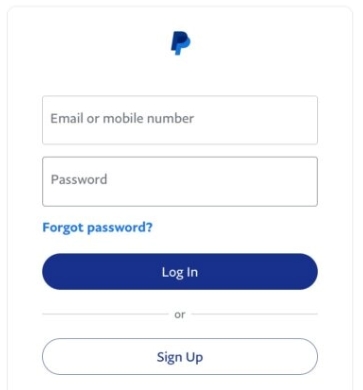 To change your PayPal username, first log in.
Firstly, you’ll need to sign into your PayPal account. Enter in your email or phone number — whichever one is linked to your account — and then type in your password. (To be clear: This should be the information on your account as it currently stands, not the information you’re trying to change it to.)
Step Two: Go to Your Account Settings
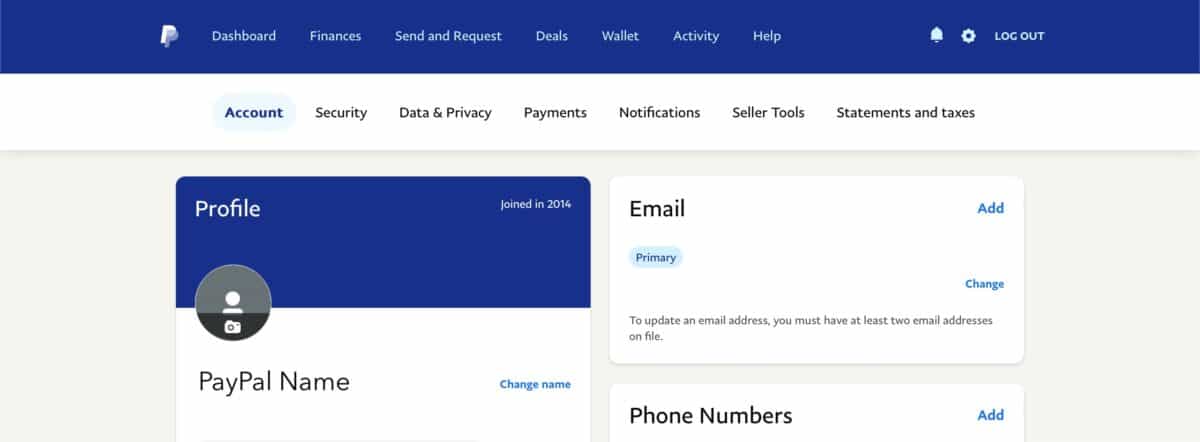
After logging into your PayPal account, you’ll be taken to your PayPal Dashboard. From here, you’ll want to click the gear in the top right-hand corner. This will then take you to your Account Settings. This is the place where you’ll soon find the option to change your PayPal username.
Step Three: Click “Change Name”
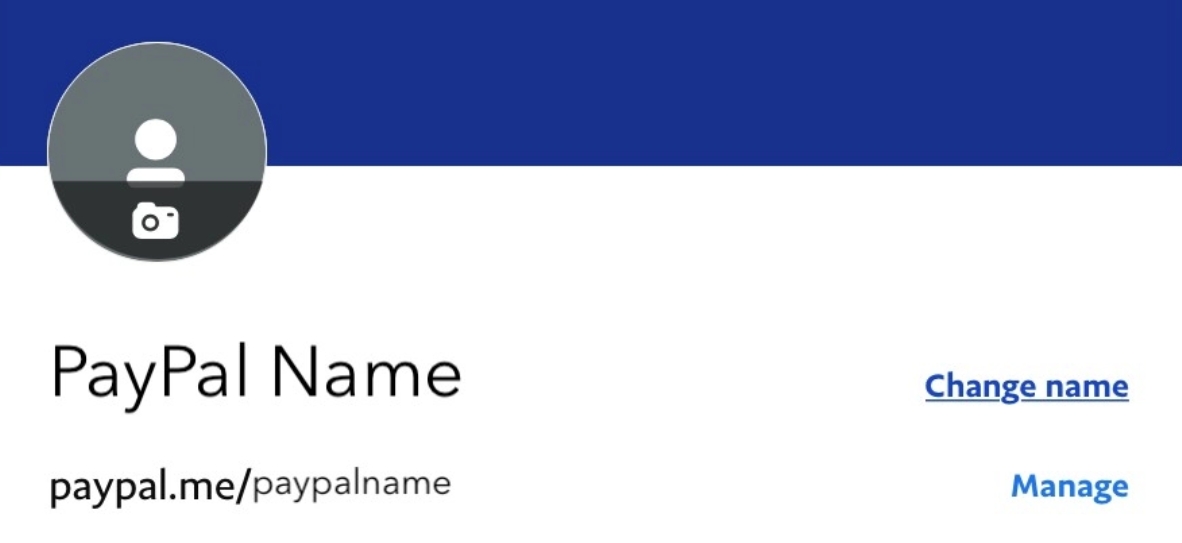 Click “Change Name” under your Account Settings.
Look under the heading labeled “Profile.” Do you see the option that says “Change Name,” located next to the name on your profile?
Click that. This action will take you to the appropriate page to ultimately change your PayPal username. (Don’t click “Manage,” as that will simply take you to the place to edit your basic profile information — such as your bio and your profile pic.)
Step Four: Select a Reason
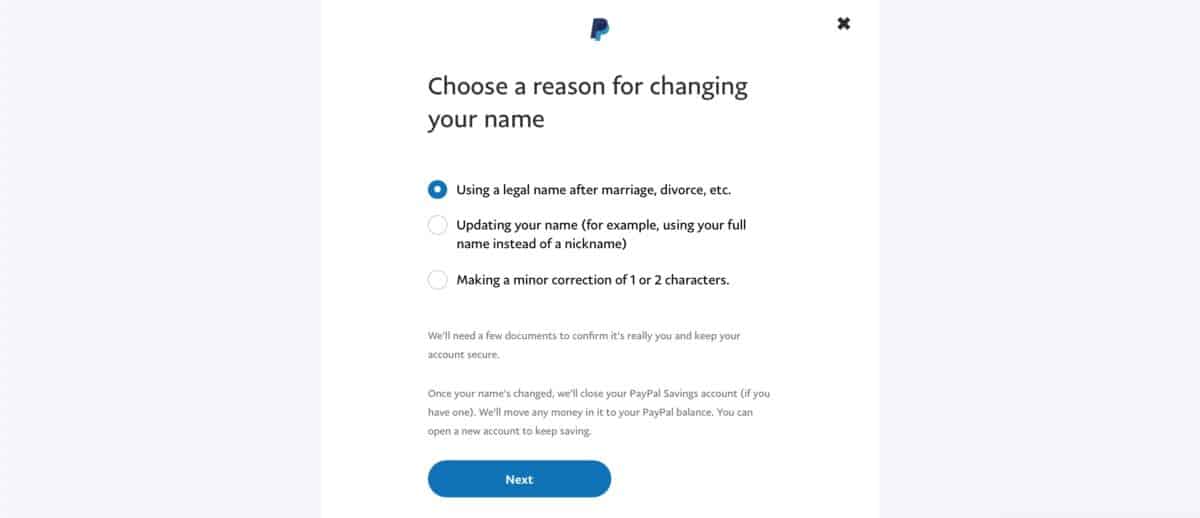
From here, you’ll want to select the reason you wish to change your PayPal username. These reason are the same ones we touched on above. New legal name? Editing your first name? Made a typo? Pick one, then prepare to answer some questions on the next page. (And maybe even provide some paperwork.)
Step Five: Upload Appropriate Documents, if Necessary

Before making your username change official, you might be asked to upload some supporting documents. Perhaps it’s the legal paperwork from your name change in court. Or, maybe it’s your marriage license showing your new change of last name. Maybe it’s a scan of your ID. No matter what the site asks for to make your name change official, you should expect to provide it.
Then, that’s it! If your supporting documents back up your desired name change, then you’ll soon find your username change made official on your account. If PayPal needs more from you, they’ll reach out via email to ask for additional documentation. Without supporting docs, you won’t be able to change your name. With this, you’ll be sending money in no time.
How Long Does It Take?
If there are no other issues arising, then in most cases it will take between three and five business days for PayPal to review and complete your request. However, in some cases it may take longer, especially if they require further documentation from you.
How to Change Your Username on PayPal: Summary
There are several reasons you may want to change your username on PayPal, such as you changed your legal name or you want to correct a typo. This process only takes a few steps and doesn’t take long to complete.
There is a waiting period, however, while PayPal reviews your request. Now that you know how to change your username on PayPal, you can easily change it and relax knowing you completed the task.
Frequently Asked Questions
What is my PayPal username?
Typically, PayPal puts more emphasis on the email or phone number you use to log in rather than the @[Username] you use to send and receive payments.
However, your PayPal account still has one of these @s. You can find it by going to your profile and look underneath your name. You’ll see an address starting with paypal.me/[blank]. Everything behind the slash is your username.
Can you change your PayPal username?
Due to security reasons, you can change your PayPal username only once, immediately after creating the account — and only by a couple of letters, in case of misspellings. Beyond this, you cannot make any changes on your own. You may have luck contacting customer service.
Can I change my PayPal name to my married name?
In the instance of a marriage or other last name change, you do have the ability to edit your name on PayPal. There are instructions for this on your PayPal account when viewed on a web browser. Just click “Change name” next to your listed name and follow the prompts.
Can you change your business name on PayPal?
If you have a PayPal business account, you can go to your account settings and click “My Business Info,” then “Business Information.” You should see a prompt about changing your business name. Like with any significant PayPal change, there are limitations to this change for your own security.
Why doesn't PayPal allow you to make many changes to your name or username?
The reason PayPal is so strict about making changes to the name that identifies your account is to protect it from any hackers or cybercriminals changing your information to someone else’s and stealing your financial information or disguising it as their own.