How to Play 2-Player on Minecraft Nintendo Switch: 5 Steps with Photos
Minecraft has shown the world that a game doesn’t need top-notch graphics or modern effects to be popular. Gamers will love any game with a robust storyline, a catchy theme, and adventurous elements.
You can’t forget that Minecraft has pixelated graphics and, despite that, it currently has more than 170 million active users. This boost was explicitly due to the liberty of playing 2-player on Minecraft, similar to split-screen gaming in the olden days.
Fortunately, the split-screen feature is available on the Switch, PlayStation, and Xbox. But sadly, it is not supported on PlayStation Vita and Wii U consoles due to the resolution difference. For the split-screen to work, you will need a console and a TV compatible with a minimum 720p resolution. PlayStation Vita has ¼ of 1080p (QHD), and Wii U has 480p resolution.
If you have a Nintendo Switch, you must connect it to a TV through an RGB component cable or HDMI. Of course, you will also need a second controller to turn your solo Minecraft gaming into 2-player. Let’s learn how to play 2-player on Minecraft Nintendo Switch.
How to Play a 2-Player Minecraft Game on the Nintendo Switch
Nintendo Switch offers users an immersive gaming experience by allowing them to play games with friends. All they need is another Joy-Con controller and to turn it sideways. You can even get a pro controller to play games with your friend with a Joy-Con controller.
If you plan to play 2-player on Minecraft Nintendo Switch, you must first learn how to connect the Joy-Con controllers to the console. Here is how you can play any 2-player game on Switch.
Step 1: Remove Joy-Con Controllers From the Console
First, detach the Joy-Con controllers from your Nintendo Switch by turning it over. Then, long-press the button on the controller’s back, the one present next to ZR and ZL buttons. Gently slide the controller up to remove it from the console. Repeat the same procedure on the other controller.
Step 2: Add the Joy-Con Straps
Now, attach a strap to the first Joy-Con by sliding its bottom’s opening over the controller’s side track until it fixes perfectly in its place. In case you don’t know, straps are thin, long pieces with a or – button at the top. You must align them with the relative and – buttons on the controllers.
You can use the controllers as two. However, you don’t have to do that if your friend has a pro-controller. Simply remove the straps by pulling the grey tab at their bottom and sliding them up. Then, place both Joy-Cons back into their holders to turn them into one.
Step 3: Set Up the Controllers
Tap the Joy-Con icon on the Nintendo Switch’s HOME screen to open the controller settings. Here, you can set up both controllers for 2-player gaming.
Choose Change Grip/Order. If you’re using both Joy-Cons separately, turn both controllers sideways so the analog stick will be on the left.
Then, press the R and L buttons on the strap’s top. Press the R and L buttons on both controllers in the pro-controller and controller setup.
Step 4: Choose a 2-Player Minecraft Game and Enjoy!
Finally, search for 2-player games on your Nintendo Switch. You can also buy games from the eShop, but always check their information to confirm whether they allow multiple players. Choose the one that does and launch it.
Tada, you’re all set to play 2-player on Minecraft Nintendo Switch!
How to Play 2-Player on Minecraft Nintendo Switch Online
If it’s your first time playing Minecraft on a Nintendo Switch, you’d want to explore it with your friends. You can do it online, but ensure a stable internet connection before moving on to the steps below.
Step 1: Create a Minecraft Profile
Turn on your Nintendo Switch and open Minecraft. Wait for the game to load, create a profile, or use a previously-made one to get started.
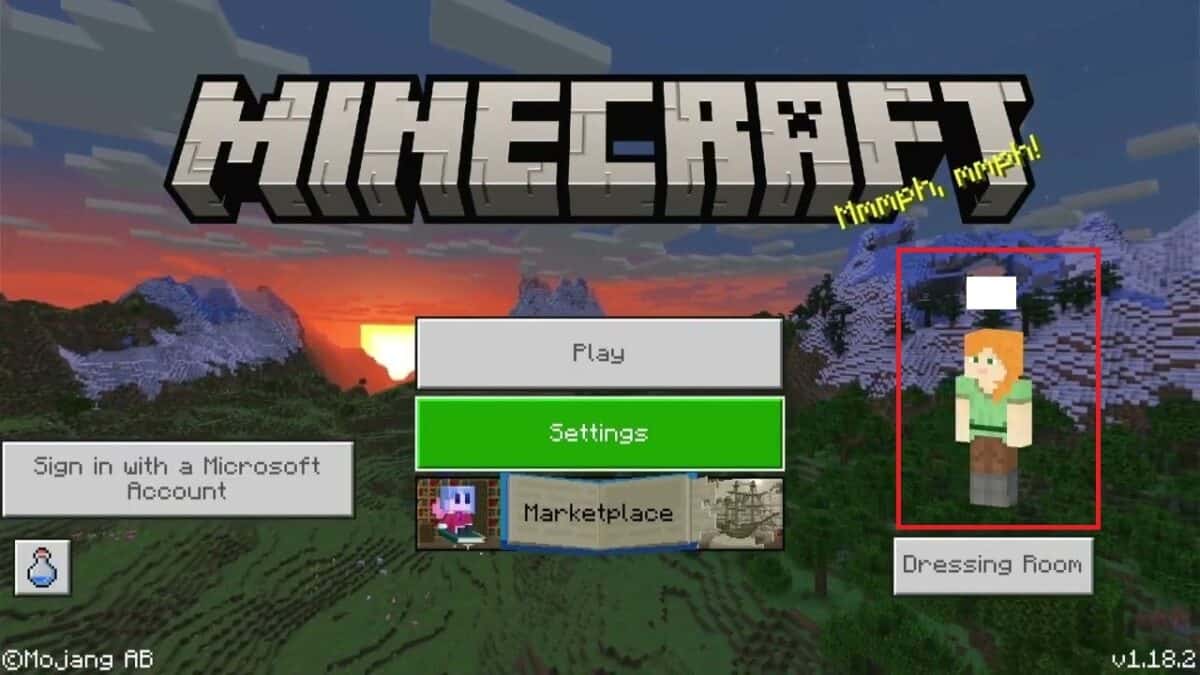
Step 2: Toggle off the Screen Reader
The next step is to turn the screen reader’s toggle from off to on. This feature is active by default, but you can turn it off anytime through your controller’s d-pad or A button.

Step 3: Sign in to Your Minecraft Account
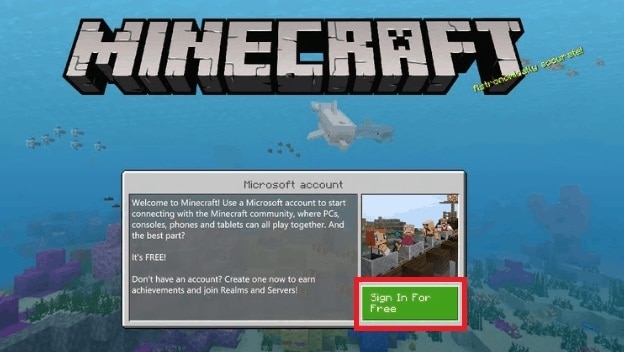
The next screen will ask you to sign in with your Google or Facebook account. The best part? Signing in is completely free! You can also use your Xbox network account connected to Minecraft on a different platform or Microsoft account to proceed.
Note the provided key and visit this page on your smartphone or laptop’s browser. Now, enter the code and choose Next. Log in to your account with your email address in case you haven’t used a live.com account.
Now, find your Minecraft account and ensure you’re signed in. You just have to provide the email address you used for your Minecraft games on platforms other than Nintendo Switch. Return to your console once you see the All Done! prompt.
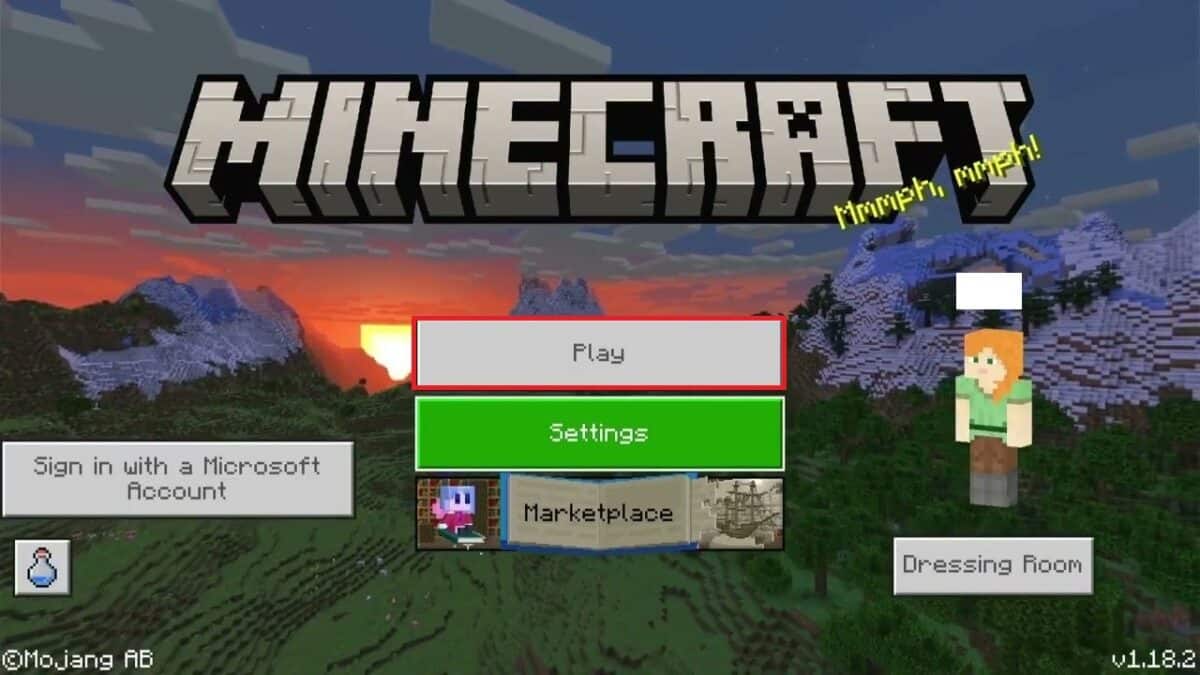
Step 4: Select Play
Open Minecraft’s settings menu and choose Let’s Play!
It will not direct you to play 2-player on Minecraft but instead will show your Microsoft account’s network profile linked to Minecraft on the Switch. You may be invited to play Minecraft with your friends on other platforms through this profile.
Just hit the Play button to proceed.
Step 5: Choose Friends
The next screen will show your Minecraft friends on Switch or any other connected platform. You can choose any Realm or World from the options to start playing.
Note: If you’re looking for a specific friend on a cross-platform, select Find Cross-Platform Friends to connect with them.
That’s all you need to do to play Minecraft with your friends. Let’s get to the real work of playing 2-player on Minecraft Nintendo Switch.

How to Play 2-Player on Minecraft Nintendo Switch Offline
Now that you know how to play 2-player on Minecraft online, it’s time to learn how to enjoy the game offline.
First, ensure you have a second controller or Jay-Con for your friend to play with. Once found, follow the below steps to play 2-player on Minecraft Nintendo Switch.
Step 1: Connect the Second Controller to the Switch
If you have your friends sitting next to you, find a second Switch controller and link it to your console. Then, connect the Switch to a docking to link it to a TV.
Step 2: Start an Existing Minecraft World
Now, open an already-operating world on Minecraft or start a new one. Choose any depending on your and your friends’ suggestions.
Step 3: Hit the Button on the Second Controller
Keep your finger on the ( ) button on the second controller until the Minecraft world loads. Once it is completed, press the button to see a Join as Player 2 prompt.
Step 4: Pick the Network
The next screen will ask you to choose any network: an online user profile or the same local network. It won’t make any difference whether you choose either of the options.

Step 5: Enjoy 2-Player on Minecraft Nintendo Switch
Pick the user network, and the screen will include your friend in the same world as yours. Finally, enjoy Minecraft in a 2-player mode on your Nintendo Switch!
Split-Screen Requirements to Play 2-Player Minecraft on Different Consoles
All the popular consoles, including PlayStation, Xbox, and Nintendo Switch, must be compatible with 720p or higher resolutions to support the split-screen feature. Along with that, you will also need a TV screen with the same resolution range. Then, adjust the Switch’s video resolution to the TV, and you’re good to go!
You can easily play 2-player on Minecraft Nintendo Switch through split-screen by opening your console’s settings and changing the screen options. You will need an HDMI cable to connect the TV to your PS4, PS3, Xbox 360, Xbox One, or Switch.
How to Play Split-Screen on Minecraft Online: Steps to Follow
When playing Minecraft, you can split your screen remotely or locally to play with up to four local players simultaneously. The split-screen feature may not be available for online players, but it is now when two or more local users are playing with online ones.
You can set the split-screen for online Minecraft gaming in the following steps:
- First, sign in to your Nintendo Switch with your Xbox Live Gold or PS Plus account. You can’t use your local Xbox Live Silver account on your Xbox One or Xbox 360. If you have a PS4, you’ll need a PlayStation Plus account. That does not apply to the PS3.
- Meanwhile, play the Minecraft Legacy edition on your Switch. Tap Play Game and Load or Create to proceed. Then, select Make New or choose any other game from the Bedrock edition catalog.
- Make any required changes to the game and turn on Multiplayer Game from the Multiplayer menu.
- Send your invitation to up to 3 other individual remote players as only 4 local players can play 2-player on Minecraft Nintendo Switch simultaneously. However, 8 can join online.
Split-screen gaming is fun. It gives you an immersive experience with your buddies, allowing you to build a realm with boxes.
Wrap Up
You can play 2-player on Minecraft Nintendo Switch by creating your Minecraft profile and signing in to your Microsoft account. Then, tap Let’s Play to get started. You will need another controller for your friend and connect it to the console.
After the setup, open the Minecraft world and press the ( ) button on the second controller to enter it. To play Minecraft on a split-screen, you must first enable Multiplayer Game from the menu. Then, send the invitation to your friends, and you’re all set to enjoy 2-player on Microsoft Nintendo Switch!
Frequently Asked Questions
Does Minecraft come on Nintendo Switch?
Minecraft does come on Nintendo Switch, but not for free. You must buy it from the Nintendo eShop at $29.99 or more. According to true gamers, this price is worth the features and add-on packs that Minecraft comes with.
How do you play 2-player on Minecraft Nintendo Switch?
You can play 2-player on Minecraft Nintendo Switch by inviting your friend to your home and attaching another controller to the console. Then, launch Minecraft and open a World. While in the World, press the ( ) button on the additional controller to enter the game into 2-player mode.
Why can't I play 2-player on Minecraft Switch?
You can play 2-player on Nintendo Switch through the split screen mode. If you’re facing errors, try turning the multiplayer option off and then ask your friend to press the ( ) button on the controller to enter the split-screen mode.
How many players can play on one Nintendo Switch Minecraft?
A maximum of 4 local players can play on the Nintendo Switch Minecraft simultaneously, but more can join through online gaming. But for that, the console and the TV should have a minimum resolution of 720p to support the split-screen feature.
How do you play with friends on Nintendo Switch?
You can add friends on Nintendo Switch from the Add Friend icon on the console’s home page. Choose the method you want to add friends with, follow the on-screen prompts, and expand your friends list. You can also send requests to nearby users by bringing the consoles close.
Does the Nintendo Switch need Wi-Fi?
Nintendo Switch requires an internet connection for online gaming. You can connect it through a LAN adapter to establish a wired connection or through Wi-Fi for a wireless connection.