How to Add PayPal to Apple Pay: In 5 Steps, With Photos
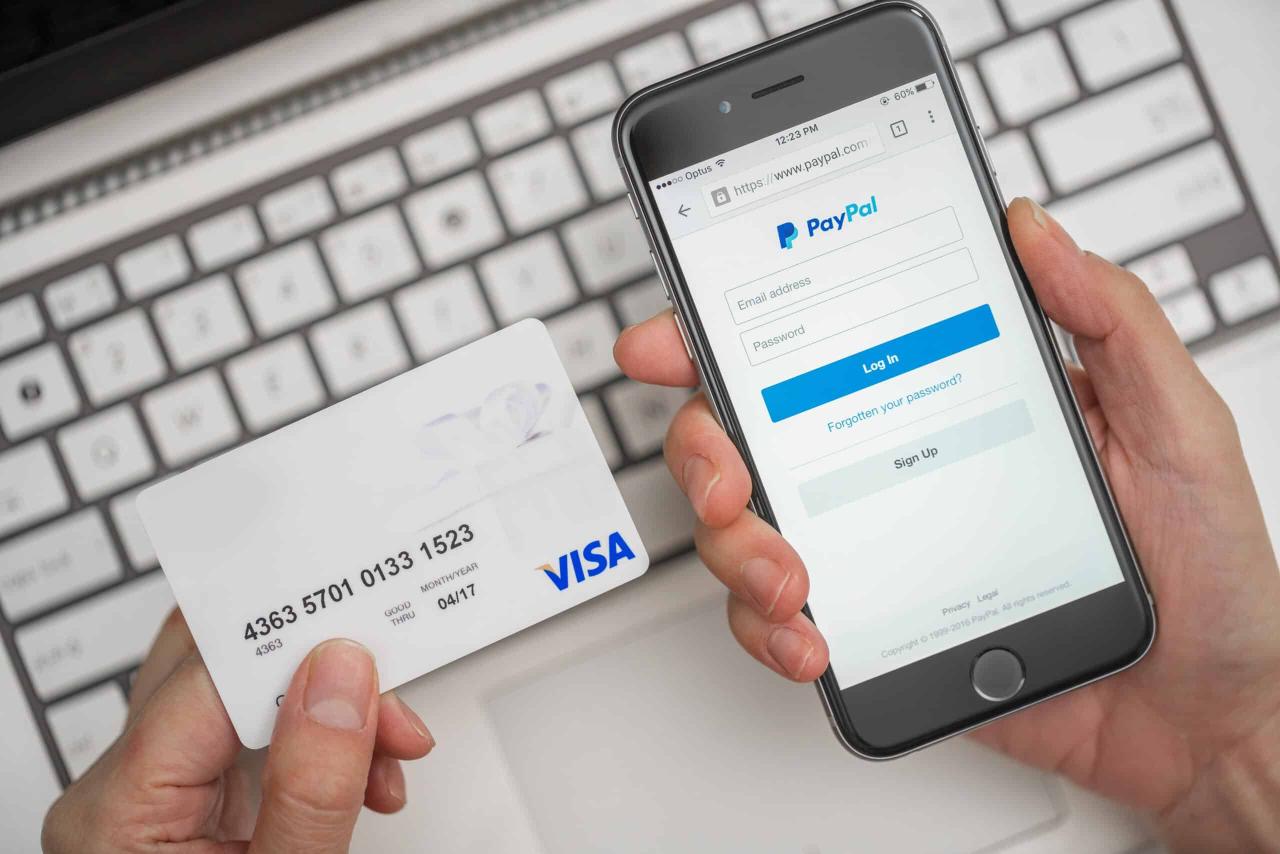
If you’re reading this, you’re probably wondering whether you can add PayPal to Apple Pay. Unfortunately, Apple Pay and PayPal don’t get along well. In fact, you can’t add PayPal as an Apple Pay payment method. But that doesn’t mean you can’t use PayPal with Apple. We’ll show you how to add PayPal to your iCloud and how to update Apple Pay payment methods.
Some rumors suggest a time is coming when we can add PayPal to Apple Pay. So, we’ll show you how to add payment methods like PayPal to Apple Pay and how to add PayPal to your iCloud account on your iPhone and a Mac.
So, let’s jump right into our tutorials.
How to Make Contactless Payments with PayPal
As mentioned previously, we can’t add PayPal to Apple Pay. Fortunately, we won’t leave you without a solution to using PayPal for contactless payments. If the retailer offers the option, you can use the QR reader in the PayPal mobile app for iOS.
If you need to make contactless payments using PayPal on your iPhone, follow these steps:
Step 1: Open the PayPal App
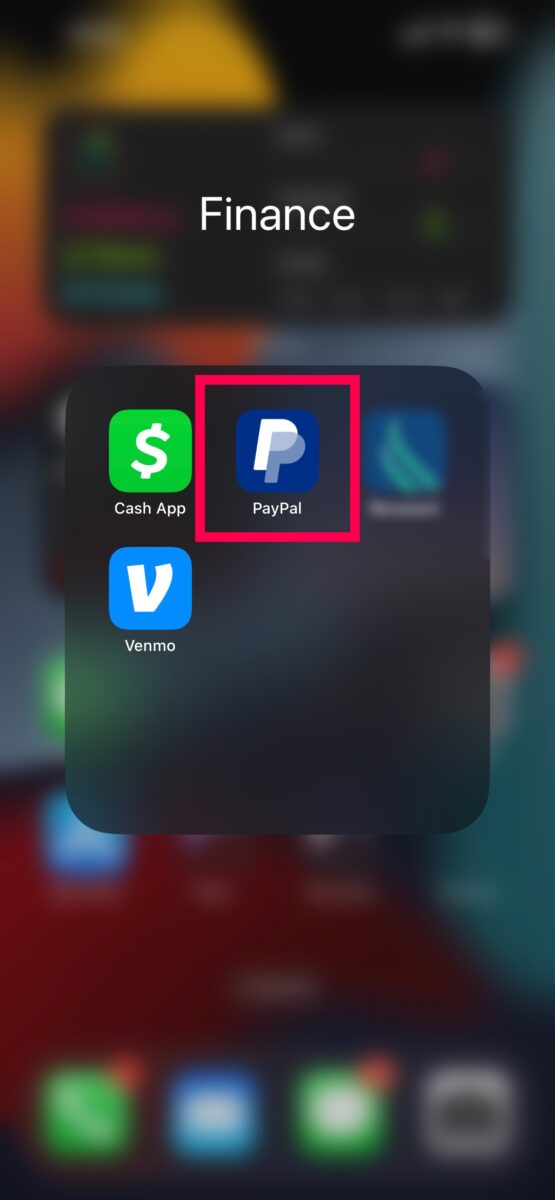
Start by opening the PayPal app. You can find this in the App Store, your home screen, or the App Library on your iPhone.
Step 2: Tap the QR Code
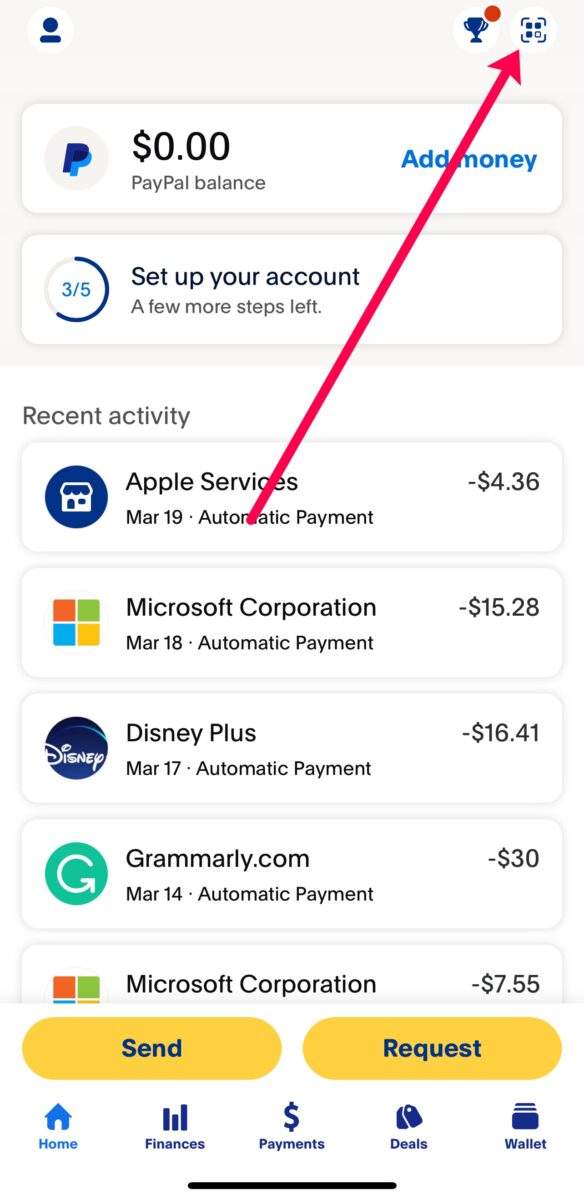
After launching the app, ensure you’re logged into your PayPal account, then tap the QR icon in the top right corner.
Step 3: Choose Your Payment Method
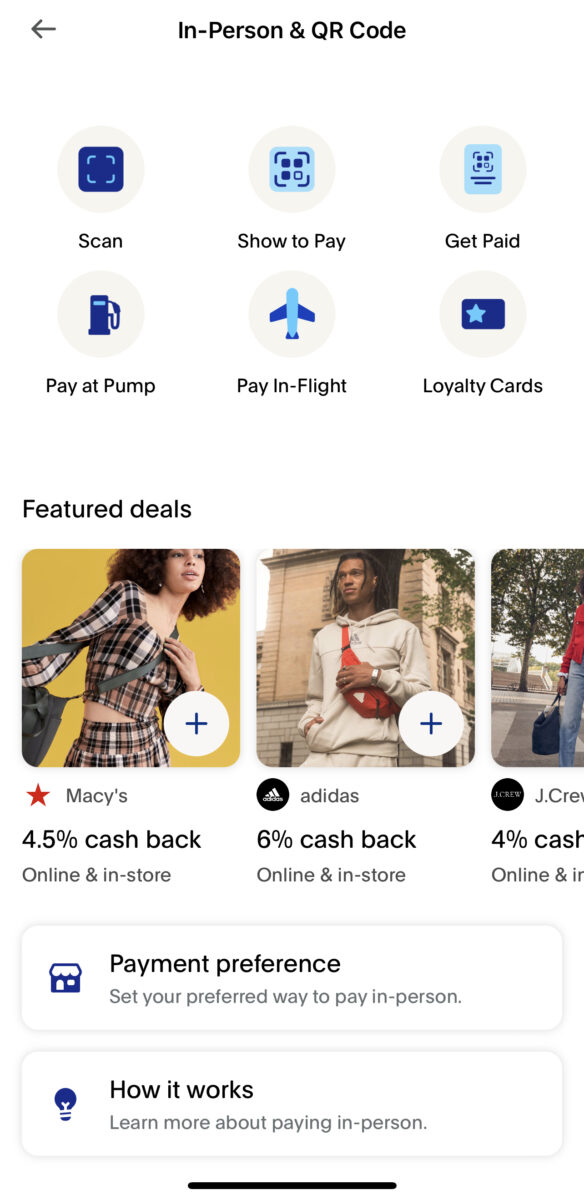
Finally, choose how you want to make your purchase.
How to Add Payment Methods to Apple Pay on iOS – Apple Pay Alternative
As stated previously, we can’t add PayPal to Apple Pay yet. But we can show you how to add payment methods to Apple Pay on your iOS device, and hopefully, by the time you find this article, you can add PayPal.
To add payment methods to Apple Pay, do this:
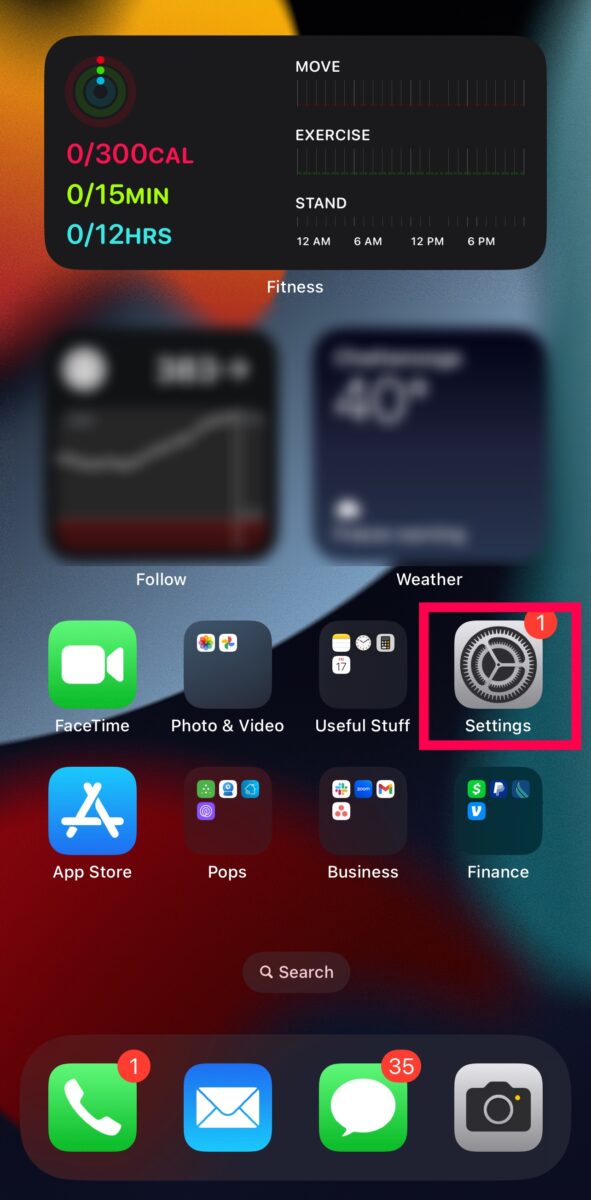
Step 1: Open Settings on Your iPhone
Start by opening the Settings app on your iPhone.
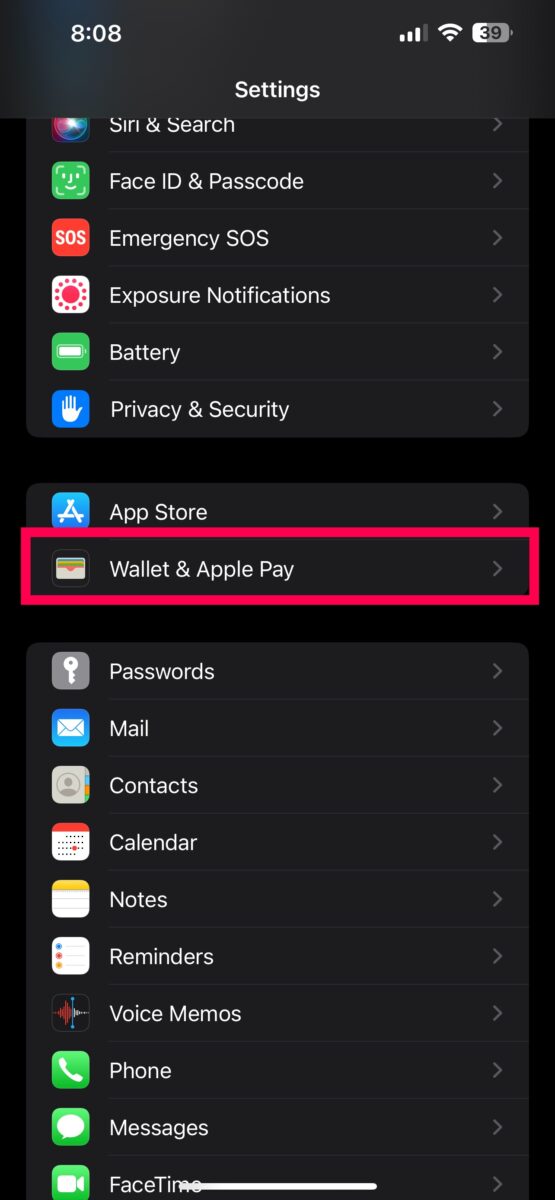
Step 2: Tap Wallet & Apple Pay
Scroll down the page (about halfway) and tap on Wallet & Apple Pay.
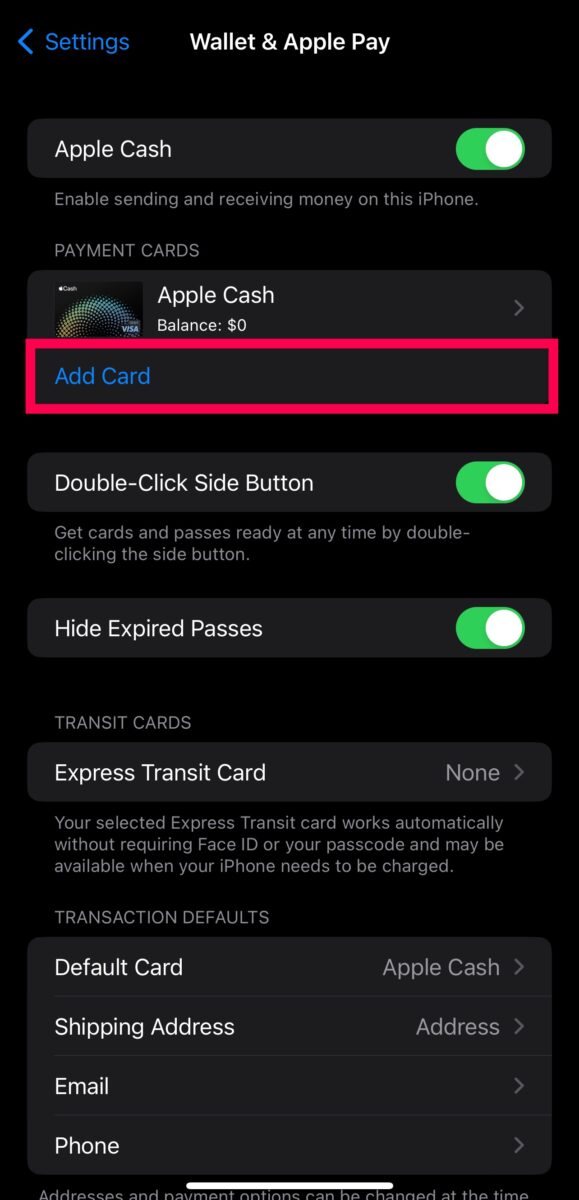
Step 3: Tap Add Card
Now, tap Add Card.
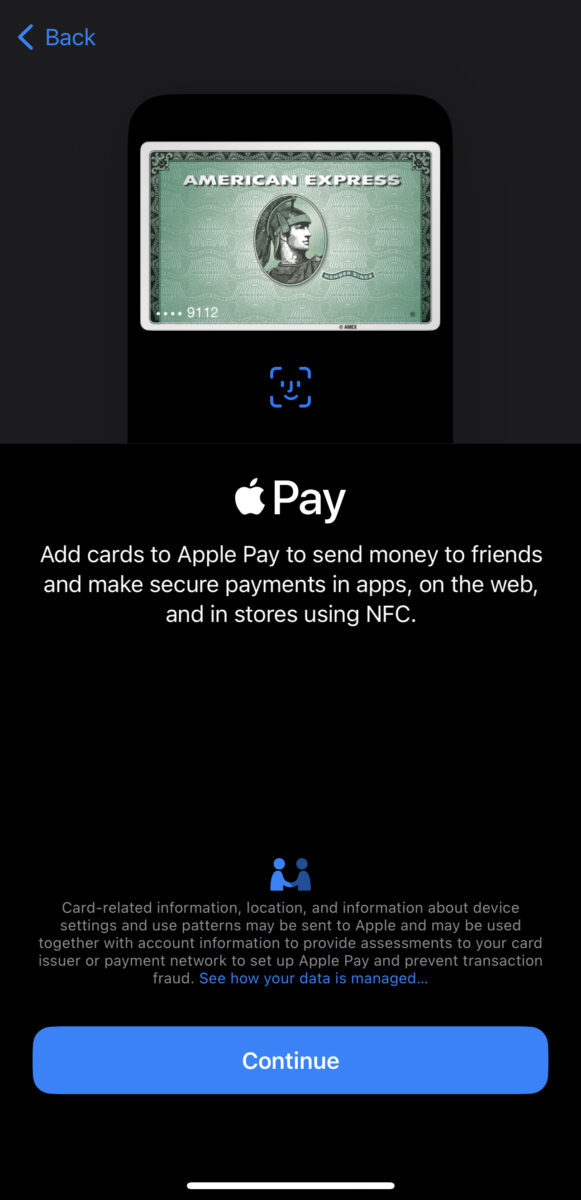
Step 4: Tap the Payment Method
At this time, we only have options to add payment methods that aren’t PayPal. Select one of the available payment methods.

Step 5: Add the Payment Method
Follow the prompts on the screen to add your payment method to Apple Pay.
How to Add PayPal to iCloud on iOS – Apple Pay Alternative
Adding PayPal to Apple Pay would be amazing because we could use the tap-to-pay feature in stores. Unfortunately, that isn’t an option yet. But we can add PayPal to our iCloud accounts and make online purchases and subscriptions much faster and easier.
Here’s how to add PayPal to your iCloud account:
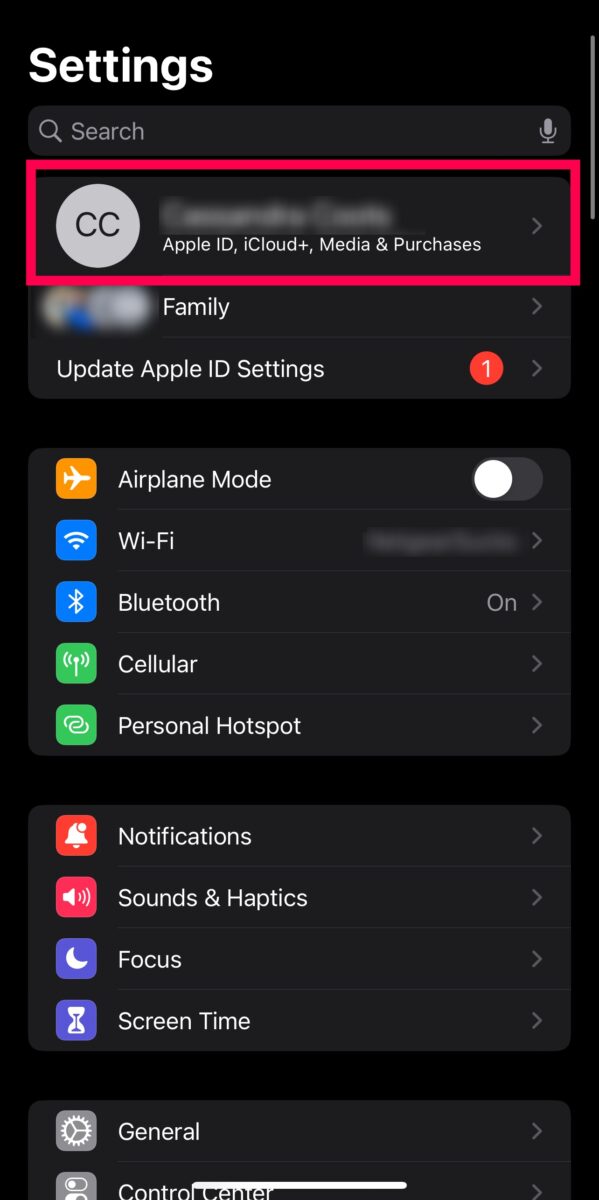
Step 1: Tap Your Name at the Top of Settings
Open Settings and tap your name at the top to access the iCloud settings.
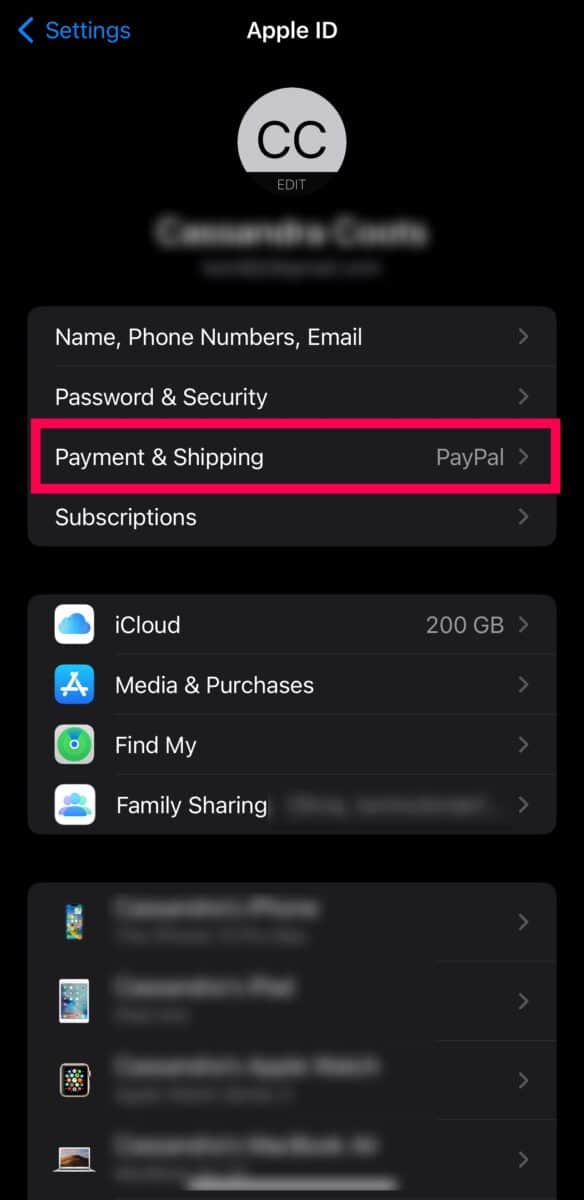
Step 2: Payment & Shipping
Tap Payment & Shipping to add PayPal.
Step 3: Tap Add Payment Method
Now, tap Add Payment Method.
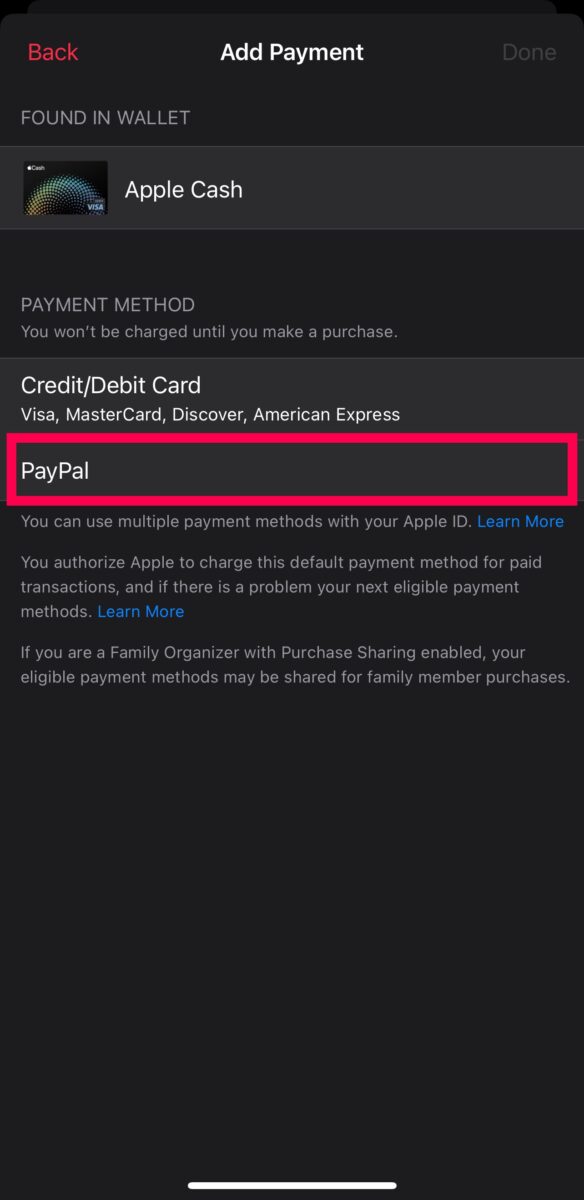
Step 4: Select PayPal
Rather than adding a card, select PayPal from the list.
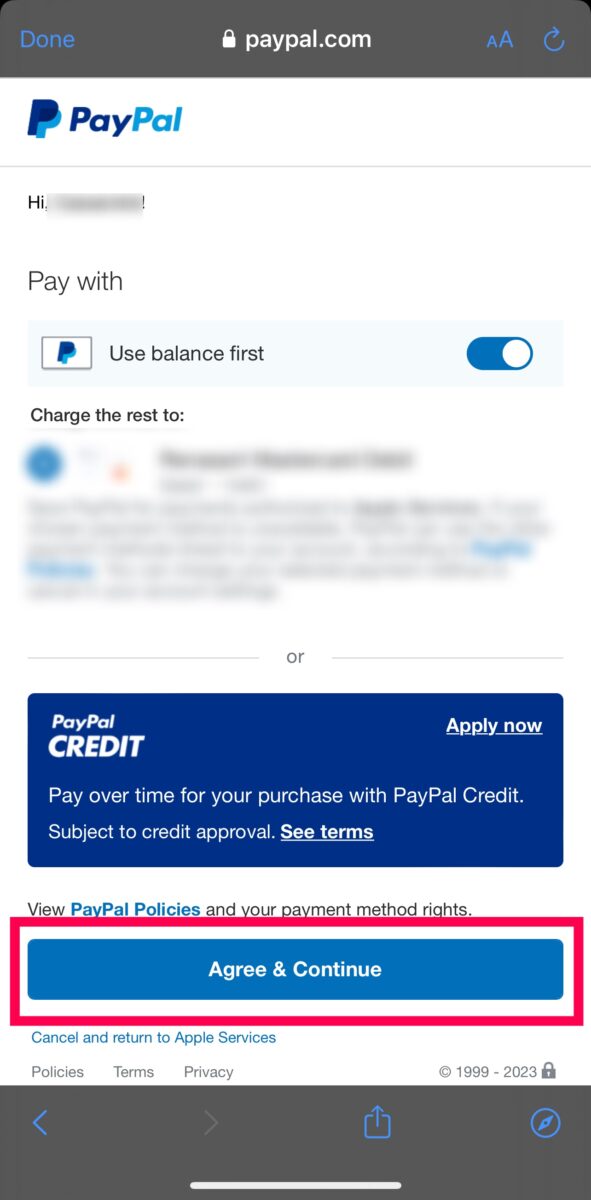
Step 5: Sign Into PayPal
A new webpage will open, asking you to sign into PayPal. Input your email and password (and a 2FA code if one is required). PayPal will authorize iCloud access.
Now, you can use PayPal to make purchases online and sign up for subscription services.
How to Add PayPal to iCloud on a Browser – Apple Pay Alternative
If you don’t have your iPhone handy, you can add PayPal to your iCloud on a web browser. Here’s what to do:
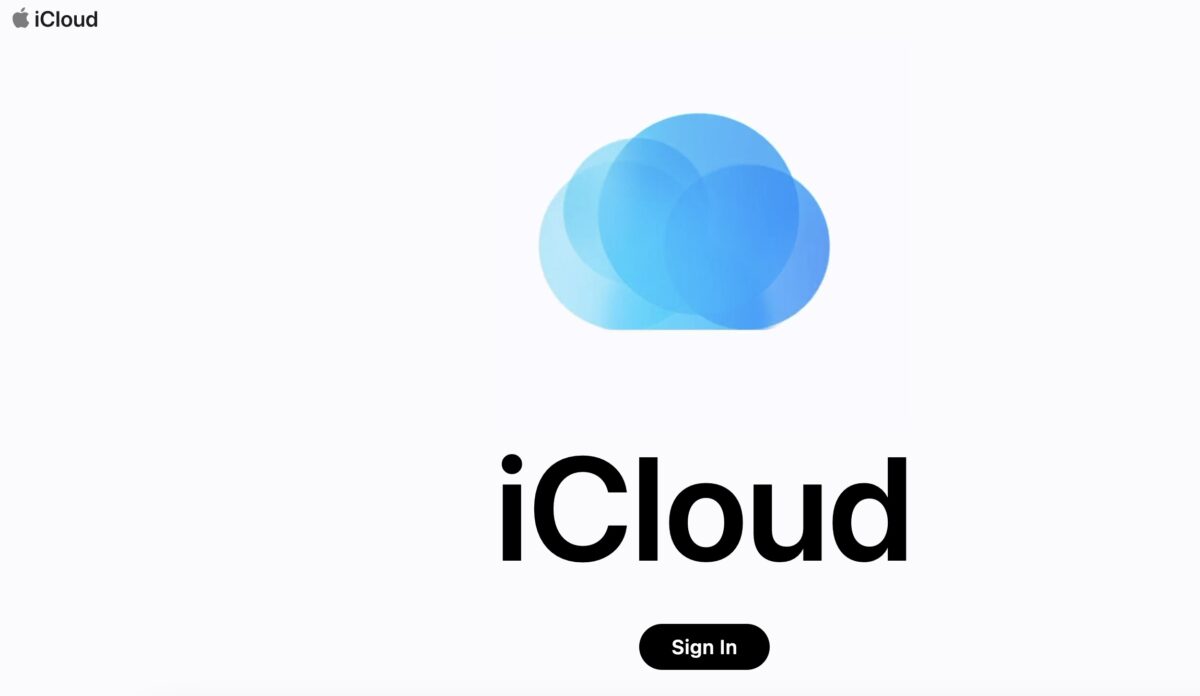
Step 1: Go to the iCloud Website
First, go to the iCloud website and sign into your iCloud account.
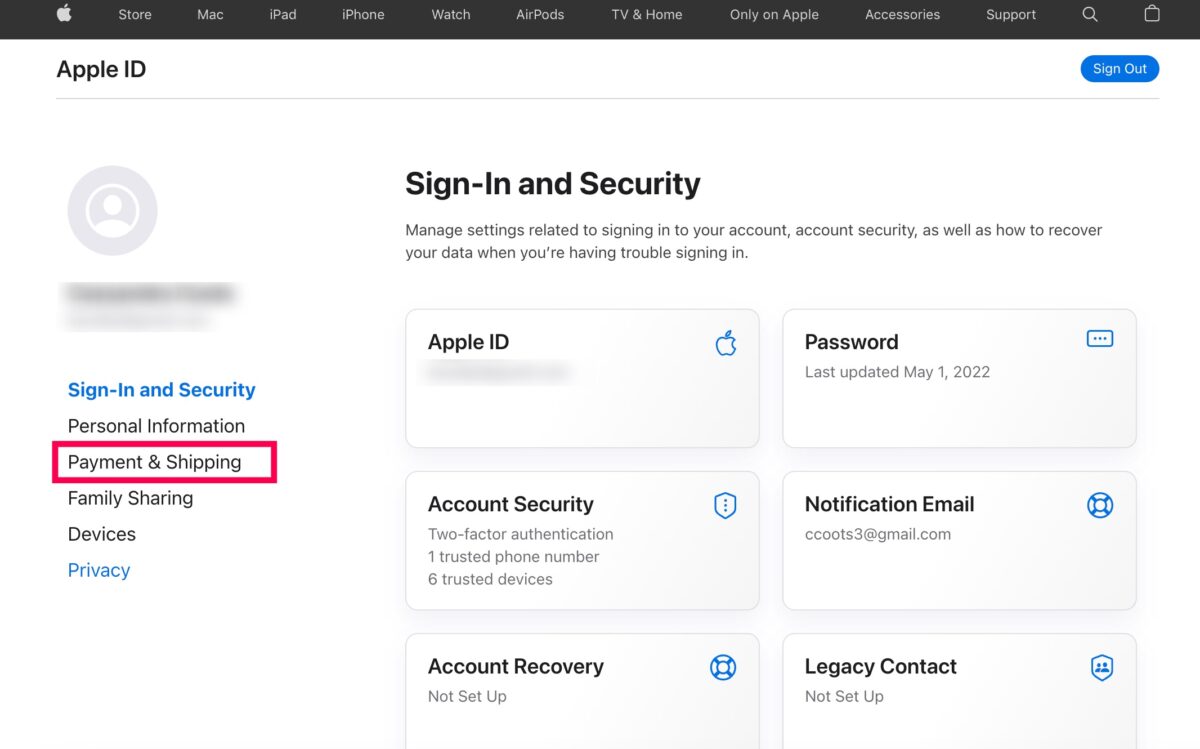
Step 2: Choose Payment & Shipping
Click Payment & Shipping on the left side.
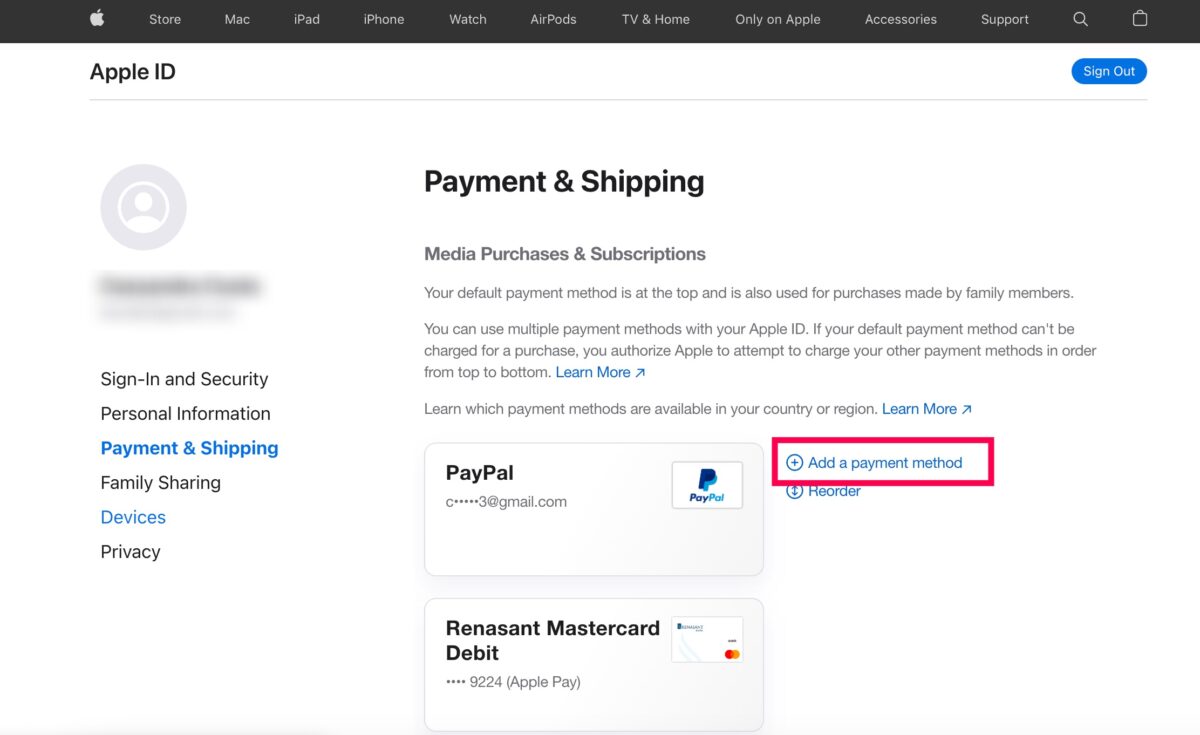
Step 3: Select Add Payment Method
Select the Add Payment Method option to the right of your existing payment methods.
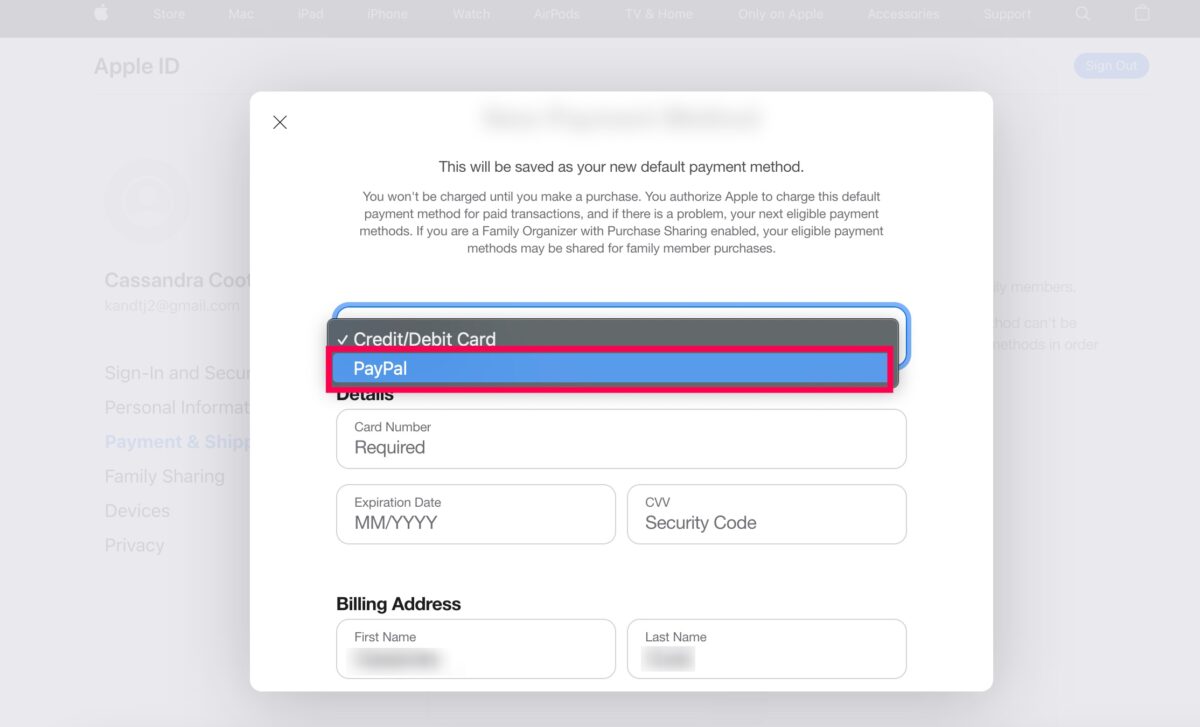
Step 4: Click PayPal
Choose PayPal from the drop-down menu (it should say credit/debit card by default).
Step 5: Sign Into PayPal
Finally, sign into your PayPal account. This will authorize your iCloud account to access your PayPal when you need to make a purchase.

How to Change Default Apple Pay Payment Method
If we ever get the option to add PayPal to Apple Pay, you’ll want to know how to update your default Apple Pay payment method. Fortunately, that part is quick and simple. Here’s what to do:
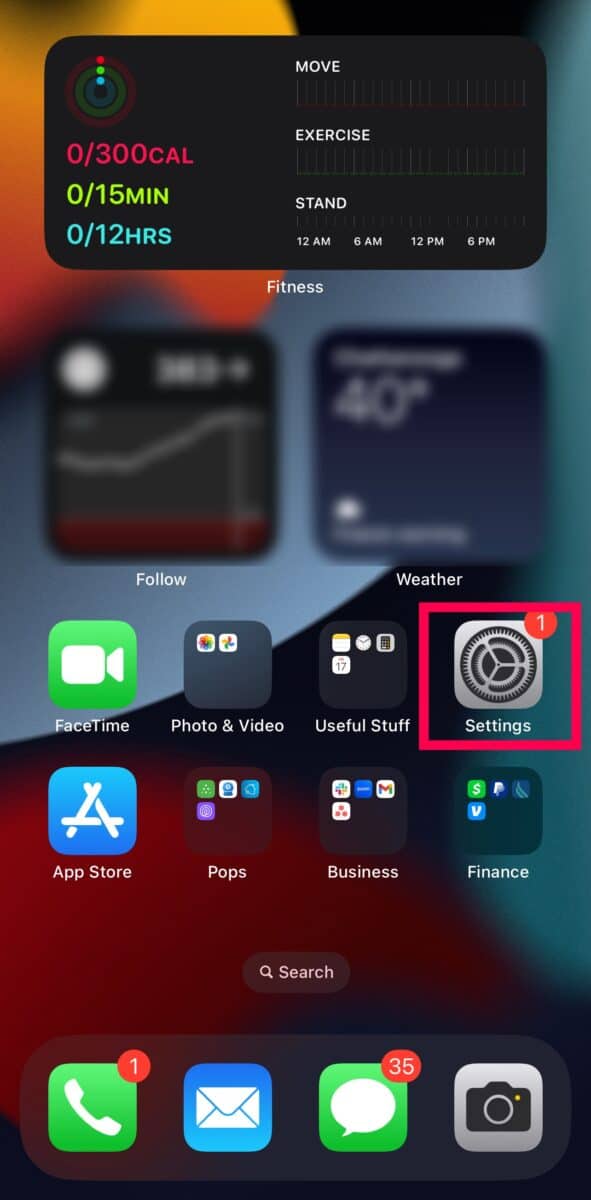
Step 1: Open Settings
Grab your iPhone and tap on Settings.
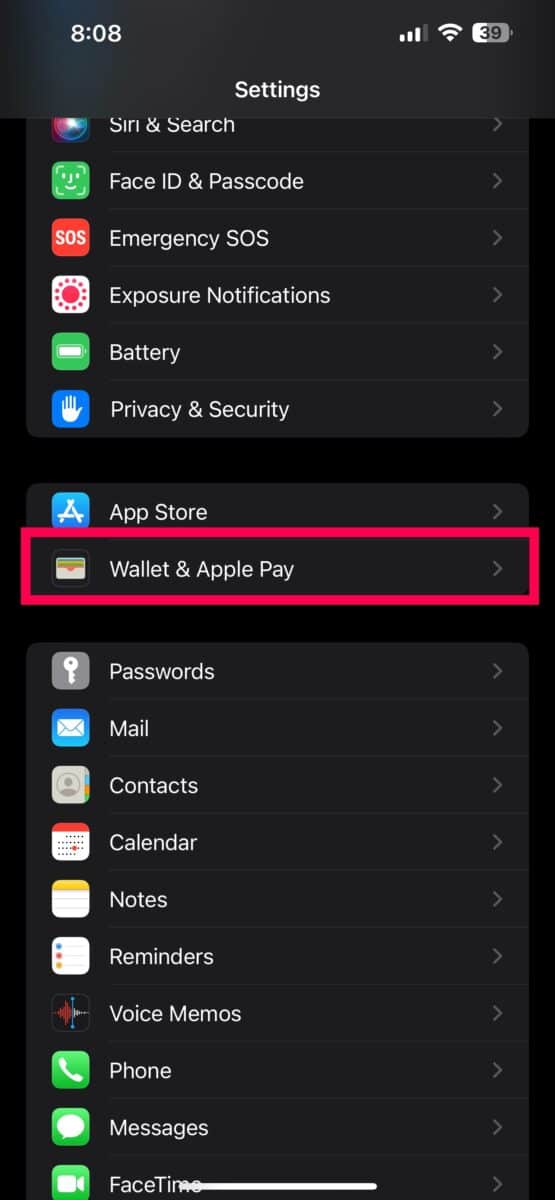
Step 2: Tap Wallet & Apple Pay
Scroll down a bit and tap on Wallet & Apple Pay.
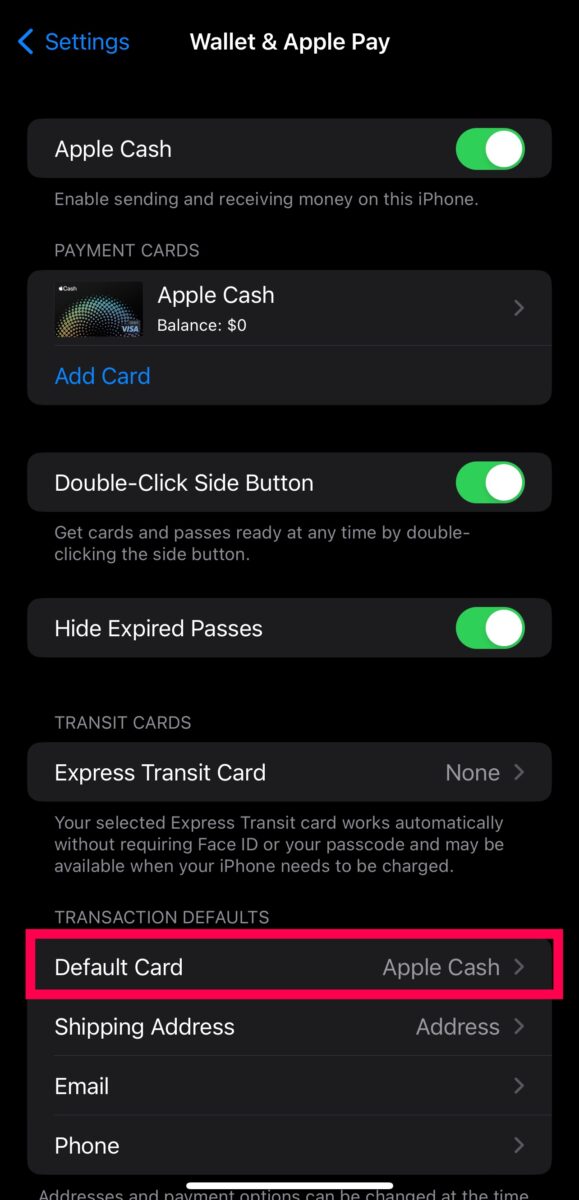
Step 3: Tap Default Card
Finally, tap Default Card. Then, you can select your default payment method.
Note: Our hope at the time of writing is that one day the PayPal option will be here.
PayPal & Apple Pay Imperfect Harmony
Apple Pay allows you to pay for products and services with your phone. Because the feature isn’t compatible with PayPal, we had to explore alternative solutions. If you’re trying to use contactless pay at a store, ask the cashier if they have a QR code option.
If you must use Apple Pay, follow the step above to add a card or designate a different card as your default. When you’re shopping online, you can use your PayPal account to make payments after connecting it to your iCloud.
Hopefully, the option to add PayPal to Apple Pay becomes a reality soon. But until then, we aren’t completely without options.
How To Add Paypal To Apple Pay: In 5 Steps, With Photos FAQs (Frequently Asked Questions)
What is the difference between Apple Pay and Apple Wallet?
The Apple Wallet is an app on your phone that acts similar to a read wallet. You can add your debit and debit cards and your ID cards.
How do I add Apple Cash?
You can add Apple cash to your Wallet using a credit or debit card. Open the Apple Wallet app and tap the + icon to add funds.
Can I use PayPal to add money to my Apple Cash balance?
Unfortunately, no. We’ve tried it, and there’s no option to add money to Apple Pay without using a credit or debit card.
How do I verify my card for Apple Pay?
If you add your card and get a message that you need to verify it, you’ll need to call your financial institution.
Can I make contactless payments with PayPal on an iPhone?
Unfortunately, no. You can make contactless payments with PayPal on an Android device, but you can’t with iOS.