The Ultimate Guide to Laptop Repair: From Novice to Tech Wizard
In our increasingly digital world, laptops have become indispensable tools for work, education, and entertainment. Yet, when these electronic marvels falter, many users find themselves at a loss. This comprehensive guide aims to demystify the process of laptop repair, empowering you to diagnose, fix, and maintain your device with confidence. Whether you're a curious beginner or an aspiring tech enthusiast, this article will equip you with the knowledge to tackle common laptop issues and potentially save hundreds on repair costs.
Understanding Your Laptop: A Brief Overview
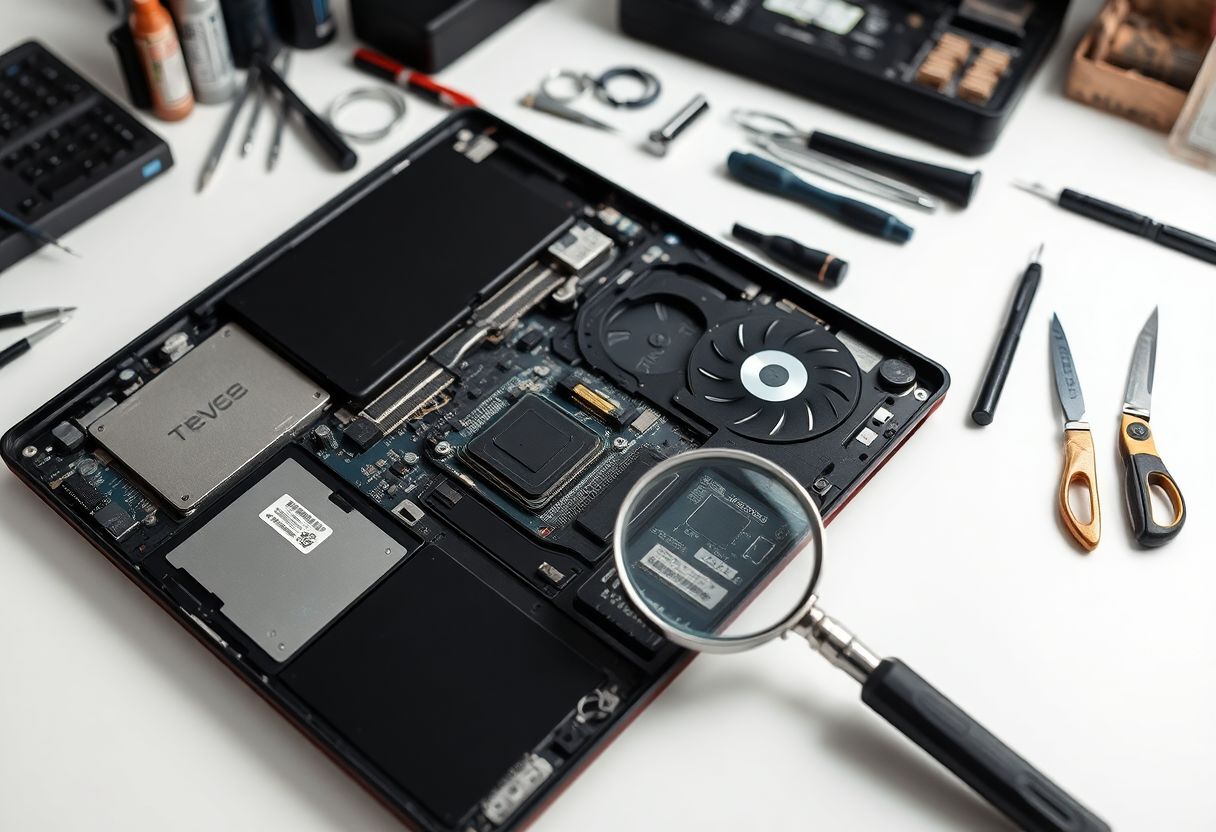
Before delving into repairs, it's crucial to understand the basic anatomy of a laptop. Modern laptops are marvels of miniaturization, packing powerful components into slim chassis. The main components include:
- The motherboard: The central nervous system of your laptop
- CPU (Central Processing Unit): The brain of your computer
- GPU (Graphics Processing Unit): Handles visual rendering
- RAM (Random Access Memory): Temporary high-speed storage
- Storage drives: SSDs or HDDs for long-term data storage
- Display: The screen and its associated components
- Input devices: Keyboard, touchpad, and other peripherals
- Battery: Provides portable power
- Cooling system: Fans and heat sinks to manage temperature
Understanding these components and their interactions is key to effective troubleshooting and repair.
Essential Precautions: Safety First
Before attempting any repairs, it's paramount to prioritize safety—both yours and your laptop's. Here are some critical precautions:
-
Warranty Check: Always verify if your laptop is still under warranty. Attempting repairs yourself could void this valuable protection.
-
Power Down: Ensure your laptop is completely powered off and unplugged from any power source. Remove the battery if it's easily accessible.
-
Static Electricity Protection: Use an anti-static wrist strap to ground yourself. Static discharge can irreparably damage sensitive electronic components.
-
Work Area Preparation: Choose a clean, well-lit workspace. A soft, static-free mat can protect your laptop from scratches.
-
Documentation: Take photos or notes as you disassemble your laptop. This will be invaluable when reassembling.
-
Organize Components: Use small containers or a magnetic mat to keep screws and small parts organized.
-
Research: Consult your laptop's service manual or online resources specific to your model before proceeding.
Diagnostic Techniques: Identifying the Problem
Effective repair begins with accurate diagnosis. Here are some methods to pinpoint your laptop's issues:
-
Visual Inspection: Look for physical damage, swollen batteries, or loose connections.
-
Boot Diagnostics: Many laptops have built-in diagnostic tools accessible during startup. Consult your manual for key combinations to access these.
-
Live Operating Systems: Use a bootable USB with a live OS to test hardware components if your system won't boot normally.
-
Software Diagnostics: Utilize built-in tools like Windows Memory Diagnostic or third-party software for comprehensive system checks.
-
Error Codes: Research any specific error messages or beep codes your laptop produces.
Common Laptop Issues and Their Solutions
1. Slow Performance
A sluggish laptop is often the first sign of trouble. Here's how to address it:
-
Disk Cleanup: Use built-in tools to remove temporary files and free up space.
-
Malware Scan: Run a full system scan with up-to-date antivirus software.
-
Background Processes: Use Task Manager to identify and close unnecessary programs running in the background.
-
Hardware Upgrades: Consider upgrading your RAM or switching to an SSD for significant performance boosts.
2. Overheating
Overheating can cause system instability, reduced performance, and even permanent damage. To combat this:
-
Clean Air Vents: Use compressed air to remove dust from vents and fans.
-
Replace Thermal Paste: If comfortable, reapply thermal paste between the CPU and heat sink.
-
Check Fan Operation: Ensure all cooling fans are functioning correctly.
-
External Cooling: Use a laptop cooling pad for additional airflow.
3. Battery Issues
Battery problems are common in aging laptops. Here's how to address them:
-
Battery Health Check: Use built-in tools or third-party software to assess battery health.
-
Power Management: Adjust power settings to optimize battery life.
-
Battery Replacement: If necessary, replace the battery with a genuine part compatible with your model.
4. Display Problems
From dead pixels to complete screen failure, display issues can be frustrating. Try these solutions:
-
Driver Updates: Ensure your graphics drivers are up to date.
-
External Monitor Test: Connect to an external display to isolate the issue.
-
Screen Replacement: For physical damage or irreparable issues, a screen replacement may be necessary.
5. Hard Drive Failure
Data loss can be catastrophic. Here's how to deal with drive issues:
-
Backup: Immediately back up any accessible data.
-
SMART Status Check: Use tools to check the drive's SMART (Self-Monitoring, Analysis, and Reporting Technology) status.
-
Disk Check: Run built-in disk checking tools to identify and potentially repair issues.
-
Drive Replacement: If necessary, replace the drive and restore from backups.
Advanced Repair Techniques
For those ready to delve deeper, here are some advanced repair scenarios:
Motherboard Repair
While complex, some motherboard issues can be addressed:
-
Component Reseating: Sometimes, simply disconnecting and reconnecting components can resolve issues.
-
BIOS Update: Updating the BIOS can fix compatibility issues and bugs.
-
Capacitor Replacement: With proper tools and skills, bulging or leaking capacitors can be replaced.
GPU Problems
Dedicated GPUs can be a common point of failure in high-performance laptops:
-
Driver Rollback: If issues occurred after a driver update, rolling back to a previous version may help.
-
Underclocking: Reducing the GPU's clock speed can sometimes stabilize a failing unit.
-
Reflow: In extreme cases, controlled application of heat can temporarily fix connection issues, though this is risky and temporary.
Preventive Maintenance: Keeping Your Laptop Healthy
Prevention is always better than cure. Here are some tips to maintain your laptop's health:
-
Regular Cleaning: Gently clean your laptop's exterior and keyboard regularly.
-
Software Maintenance: Keep your operating system and drivers updated.
-
Disk Management: Regularly defragment HDDs and optimize SSDs.
-
Cooling: Ensure proper ventilation when using your laptop.
-
Battery Care: Avoid constant charging and extreme temperatures.
When to Seek Professional Help
While many issues can be resolved at home, some scenarios warrant professional intervention:
-
Liquid Damage: Extensive liquid exposure often requires professional cleaning and repair.
-
Persistent Issues: If problems persist after your attempts, a deeper issue may be present.
-
Warranty Concerns: For laptops under warranty, always consult the manufacturer or authorized service centers.
-
Lack of Confidence: If you're unsure about a repair, it's better to seek professional help than risk further damage.
The Future of Laptop Repair
As technology evolves, so do repair techniques. emerging trends include:
-
Modular Design: Some manufacturers are exploring more modular laptop designs, making repairs and upgrades easier.
-
AI Diagnostics: Artificial intelligence is being integrated into diagnostic tools, potentially making troubleshooting more accurate and accessible.
-
Augmented Reality Guides: AR could revolutionize how repair instructions are delivered, offering real-time, interactive guidance.
Conclusion: Empowering the Tech-Savvy User
Laptop repair is more than just a cost-saving measure; it's an opportunity to understand and take control of your technology. By familiarizing yourself with your device's inner workings and common issues, you not only extend its lifespan but also gain valuable technical skills.
Remember, every repair is a learning experience. Start small, be patient, and don't be afraid to seek help when needed. With time and practice, you'll find yourself more confident in tackling increasingly complex issues.
As we continue to rely on our laptops for work, education, and entertainment, the ability to maintain and repair these devices becomes ever more valuable. By embracing the challenge of laptop repair, you're not just fixing a machine – you're investing in your technological independence and contributing to a more sustainable approach to electronics consumption.
Whether you're rescuing a laptop from the brink of obsolescence or simply performing routine maintenance, each repair is a step towards a more tech-literate and self-reliant future. So, grab your screwdriver, boot up that diagnostic tool, and embark on your journey from novice to tech wizard. Your laptop, and your wallet, will thank you.